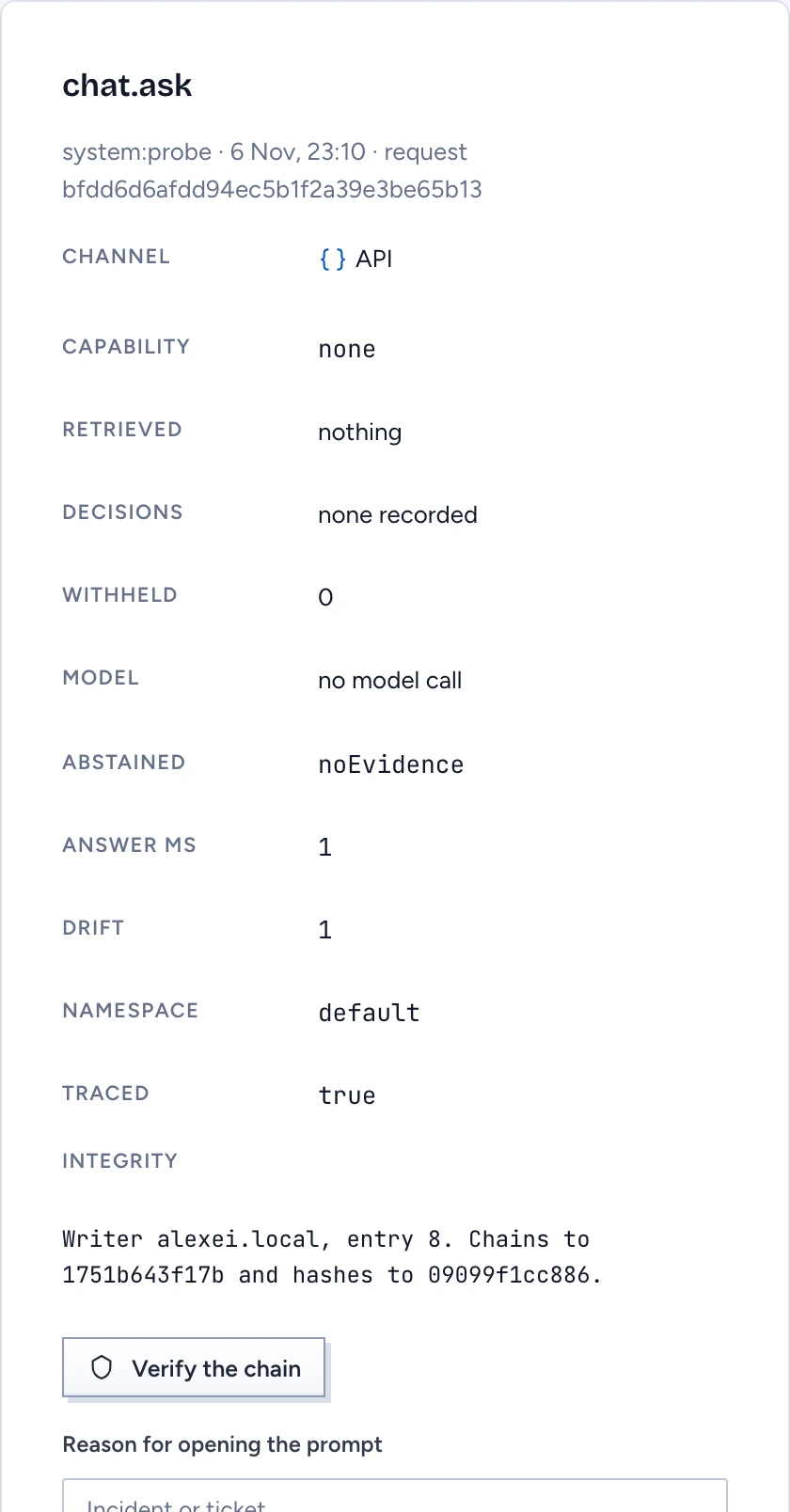
Every question, answer, action, sign-in and admin change in Gluon writes an audit record. Its metadata (actor, event, channel, Capability, retrieved object ids, the decision per object, withheld count, model) is immutable and hash chained. The prompt and the answer sit apart in an encrypted payload, kept 90 days for chat, 365 for actions and 30 for evaluations, and you open it one record at a time with a stated reason.
Who can investigate
Security officers (role:security-officer) search every record, verify the chain and open prompts. Everyone else, support staff included, needs an investigation grant for the one person they are looking into. For that person only, a grant gives its holder the owner depth in the access explainer, view as, the person's audit records and their prompts.
Grant an investigation
Only a security officer grants an investigation, and never to themselves.
- Open Access explainer under Access & governance and choose the Investigations tab.
- Under Grant an investigation, choose the Investigator and the Person under investigation.
- Write the Reason: an incident or ticket number and what is being checked.
- Pick a Duration of 1, 2, 4 or 8 hours. Eight hours is the maximum.
- Select Grant.
The grant appears under Investigation grants with who granted it and until when. Revoke ends it at once. Granting and revoking are audited, and every explanation, view as and prompt read made under a grant records the grant's id.
Find the records
- Open Audit log under Access & governance.
- Filter by Actor (a user id), Event (for example
chat.ask), Request (a request id), Conversation (a conversation id) and Outcome, then select Apply. - Select Open on a record.
The event detail shows the channel, the Capability, every retrieved object with its decision, the withheld count, the model and any other metadata the event carries, such as the reason given for a kill switch. For an answer, How this was reached summarises its trace: the steps by kind, the tools and views it read, the models, the ledger (tokens, cost and steps against the budget) and how many values the PII wiper masked. Open the trace in chat opens the full trace page for that message. An officer sees every record; a grant holder sees only the records of the people they hold a grant for. Your searches are audited too.
The API adds time bounds. GET /api/security/audit takes actor, resource, action, outcome, request, conversation, since, until and limit (up to 500). GET /api/security/audit/export returns the same search as CSV, metadata only, up to 50,000 rows.
Verify the chain
The Integrity line in the event detail names the writer, the entry number, the hash it chains to and its own hash. Select Verify the chain to check every writer's chain for gaps, broken links and changed content, and to compare it with the latest external checkpoint. You get Chain intact with the number of entries checked, or Chain broken naming the first broken entry. gluon audit-verify runs the same check from the command line.
A broken chain means someone changed or removed records after they were written. Keep the verdict with the incident and escalate it.
Open a prompt
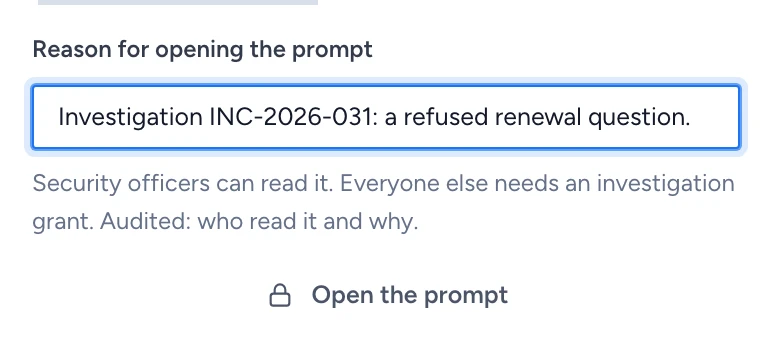
- In the event detail, write why under Reason for opening the prompt, for example the incident number.
- Select Open the prompt.
A security officer opens it directly once a reason is given. Anyone else needs a live grant for the record's actor, and the grant's reason counts when they give none. Each reading is audited as audit.payload.read with the reason, the person, the basis (officer or grant) and the grant id. A refused attempt is audited as well.
"This record has no payload, or it was erased" means retention or an erased chat removed the payload. The chain hashes the payload's id and leaves its bytes out, so an erased payload keeps the chain intact.
Read and erase chats
When a person deletes a chat, it only leaves their own chats and its share links stop working. The chat itself stays. Only a security officer can erase it.
- Open Chats under Access & governance. It lists every person's chats with their last activity, the person, the number of questions and a state: Active or Deleted, plus Legal hold when a hold applies.
- Filter by Person (a user id) or Search (titles and questions), then select Apply. Show narrows the list to chats their owner deleted, or to the ones they kept. The list shows the newest 200 matches, and each listing is audited as
chat.security-list. - Select Open on a chat. Write why under Reason for opening this chat, for example the incident number, and select Open the chat. Nothing of the chat is read before you give a reason.
- The panel shows every question and the answer exactly as it was sent to the person, with its time, outcome and withheld count. Each opening is audited as
chat.security-viewwith your reason. - To remove the chat for good, select Erase chat, type the chat's name, write the Reason for erasing and confirm.
Erasing removes the chat, its answers, uploads, feedback and share links, and the answers' content in the audit log. The audit records themselves stay, and the erasure is audited as chat.erase with the owner, your reason and the counts. You can't undo it. A chat under a legal hold can't be erased: lift the hold first.
The API is GET /api/security/chats (with owner and q), POST /api/security/chats/{id}/open and DELETE /api/security/chats/{id}, the last two with {"reason": "..."} (422 without one), for security officers only (the list also takes state: deleted or kept). Anyone else gets 403, and the refusal is audited. Erasing a held chat answers 409.