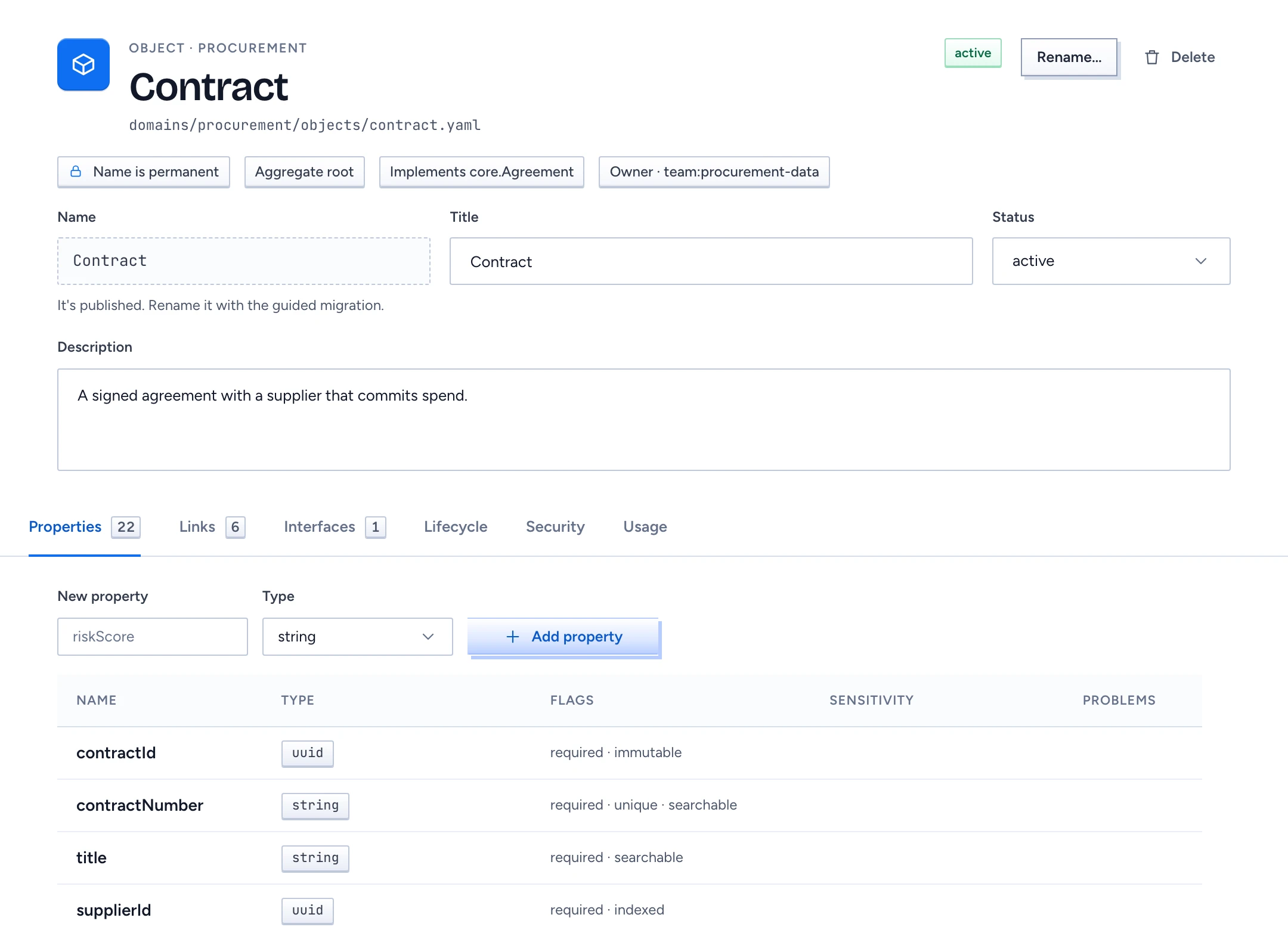
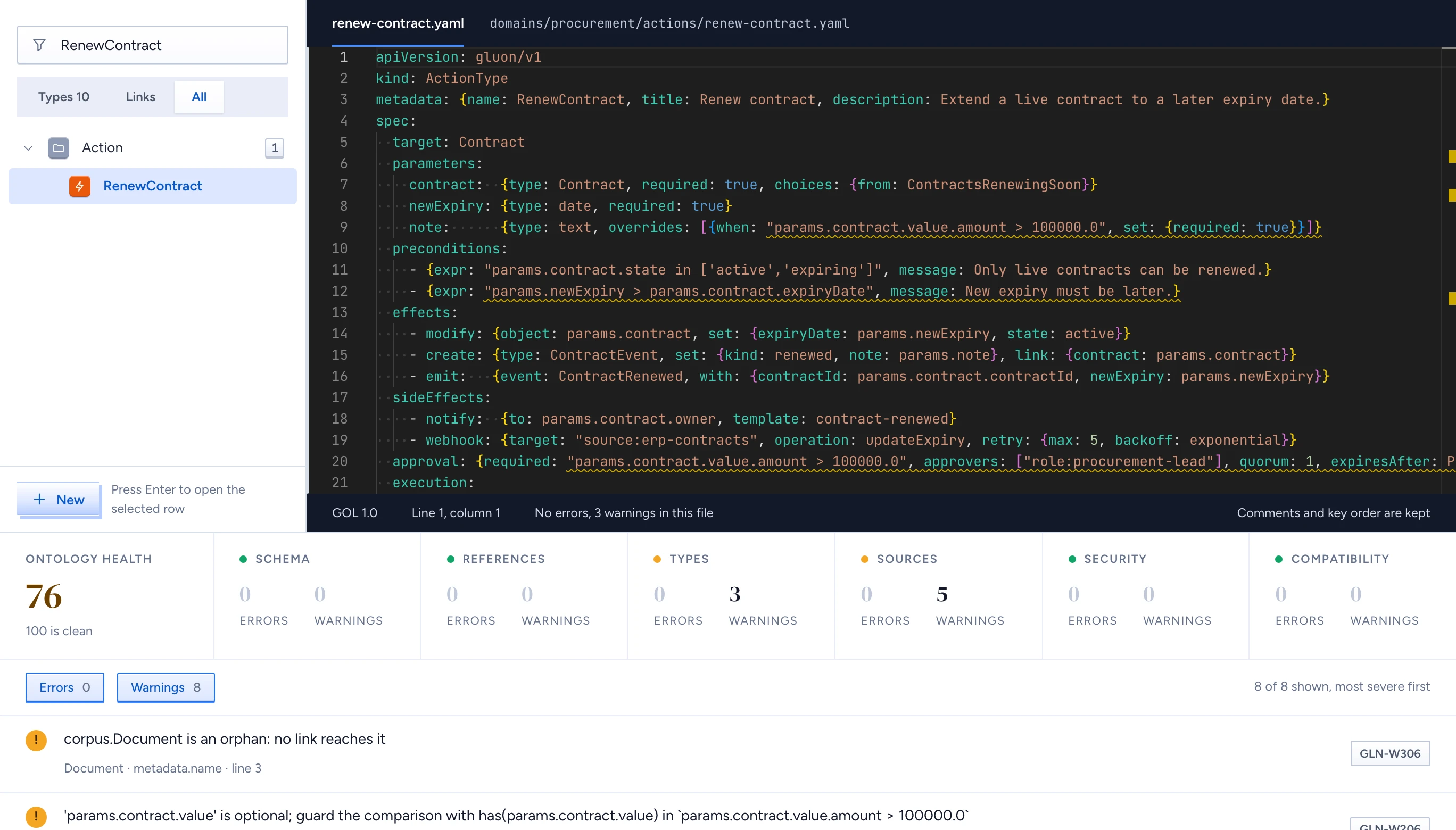
Every change you make in the designer is an edit to a GOL file in the draft proposal. The form and the YAML are two views of the same file: fill in a field and the YAML changes on that line alone; type in the YAML and the form and graph follow. People served by the model see none of it until the proposal is merged, published and deployed.
Create an element
- Click New, in the toolbar or under the catalogue.
- Pick the Kind. All 21 kinds are there, from Object and Link to Policy, Segment and Capability.
- Pick the Domain and type a Name in PascalCase. It must be unique in the domain and becomes permanent once published.
- Click Create. The dialog shows the file it will write, such as
domains/procurement/objects/renewal.yaml, and refuses a name that already exists before anything is saved.
A new Link, View, Action, Policy, Segment, Capability, Source or Deployment starts with errors for its empty references. They clear as you fill it in.
Fill in an object type
The header holds Title, Status and Description. Once published, the Name reads "Name is permanent": change it through Rename…, as described in Rename resources and check dependants.
The editor's tabs are Properties, Links, Interfaces, Lifecycle, Security and Usage.
- Properties: type a New property name in camelCase (renewalDate), pick its Type and click Add property. Click a row to open its panel: type, title, unit, default, classification, personal data, masking, markings, Never expose to a model and Lineage required. Mark a property as personal data with no masking policy and GLN-E541 appears in the panel straight away.
- Links: lists the type's links and adds one without touching the graph. On the graph, the Link tool or a drag from one type to another opens the same form.
- Interfaces: map each interface property to one of yours. An unmapped row shows GLN-E221, a type mismatch GLN-E222.
- Lifecycle: states come from the enum and transitions from pickers; a state you can't reach is flagged.
A field saves when you leave it or press Enter, so one change is one save and one undo step (Cmd Z, and Shift Cmd Z to redo).
Edit the YAML
Switch the view to Split, YAML or Editor in the toolbar. The YAML pane completes keys from the GOL schema and element names from the package, and underlines problems as you type.
- Text that parses is saved 0.7 seconds after you stop typing, and the graph follows.
- Text that doesn't parse shows "This YAML does not parse" with the line and column. Nothing is saved, the graph keeps the last saved state, and your text stays until it parses or you click Discard my changes.
- The status bar reads "Comments and key order are kept". A form edit rewrites only the lines it touched, so comments, quoting and alignment survive.
- Keys the designer doesn't manage appear under Unmanaged keys and are kept byte for byte. An unknown key is an error (GLN-E010) unless the package sets
unknownProperties: preserve.
When someone saved first
Two editors can work in the same proposal. If the file changed after you opened it, your save is refused and Someone saved this file first opens with both versions as a diff. Choose Take theirs, Keep mine or Merge by hand. Escape doesn't close the dialog, so neither version is lost.