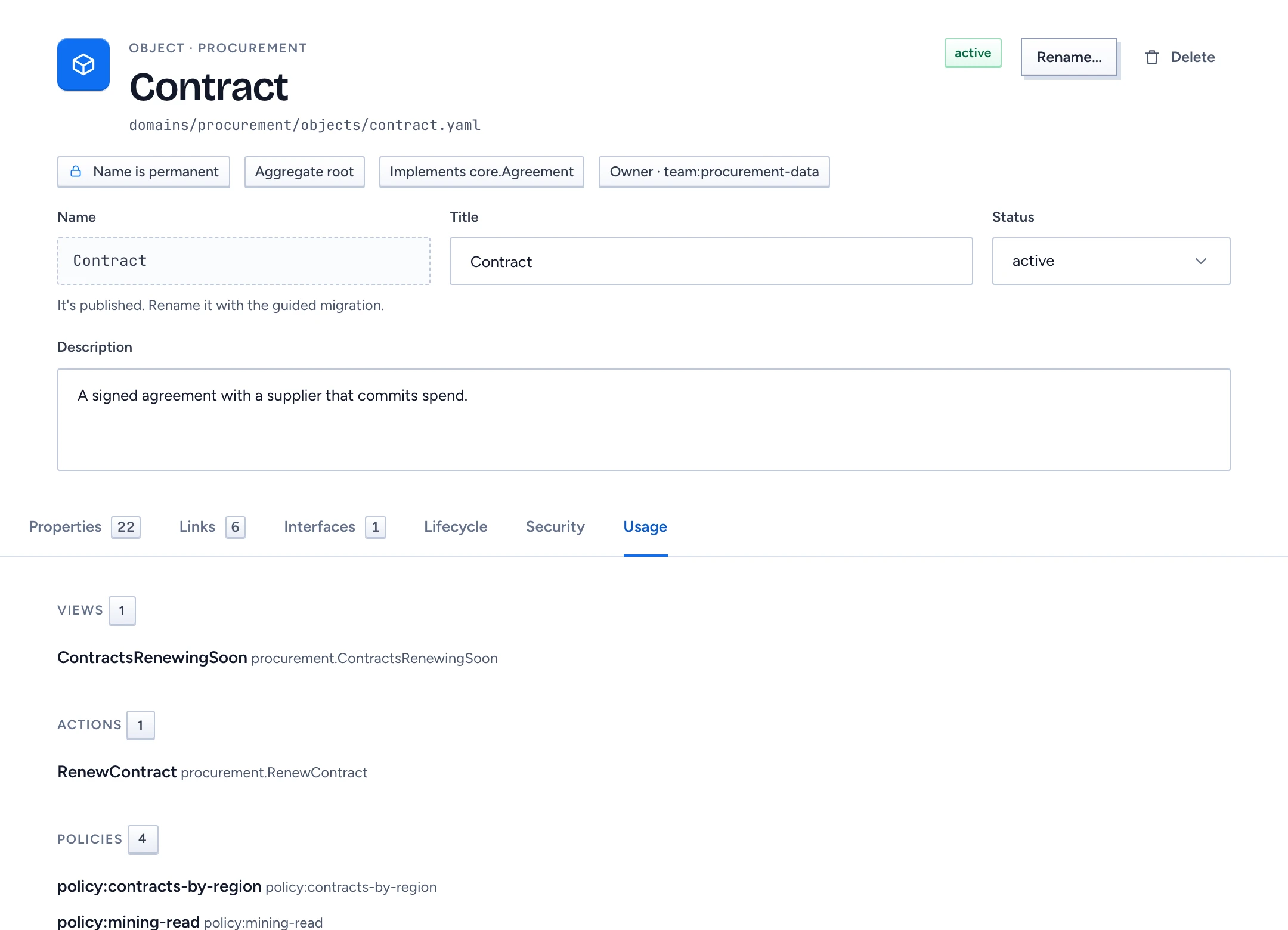
A published name is a promise to everyone who uses it: API clients, MCP tools, CEL expressions and chat. Once a type or property is published, its Name field reads "Name is permanent", and an edit that changes the name in the YAML is refused. The guided rename is the only way to change it.
See what uses a type
Open the type's editor and choose the Usage tab. It groups every reference in the proposal under Views, Actions, Policies, Segments, Deployments and Other references (links, tests, capabilities and the rest). "Nothing uses this yet" means no view, action, policy, segment or deployment references it.
If the check itself fails, Gluon treats the type as in use and refuses a delete until it can check again. The inspector's In use row counts the same dependants for the selected type.
Rename a type or property
- Open the type editor and click Rename… in the header. For a property, open its panel and click Rename… there.
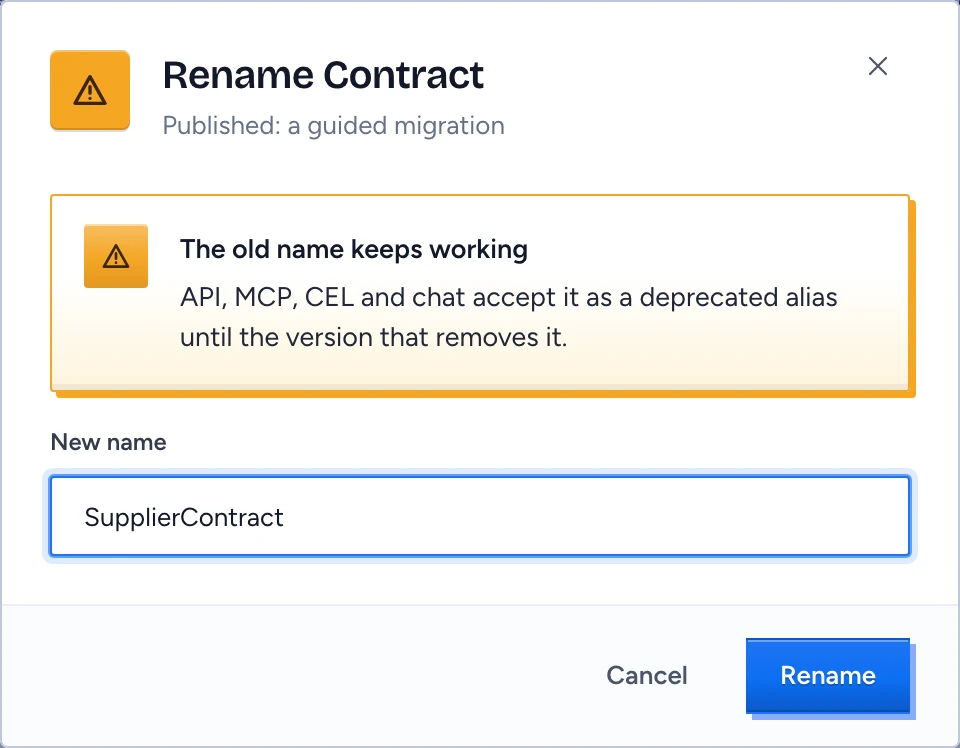
- Type the New name and click Rename.
- Gluon rewrites every reference in the proposal, keeping comments, quoting and key order, and tells you how many files were updated.
For a published element the dialog says "Published: a guided migration". Gluon adds a step to migrations/draft-renames.yaml, and until the version that step names for removal, the old name keeps working as an alias in the API, the MCP schema, CEL and chat, and is listed as deprecated in the OpenAPI document. An element that was never published is renamed everywhere with no migration ("Draft: every reference is updated").
When a rename is refused
You see "The rename did not go through" and nothing is saved when:
- the result would have errors the proposal didn't have before;
- the new name is already taken (GLN-E013) or collides with a member (GLN-E604);
- a policy rule that also covers other types names the property, so the rewrite would change access to those types too. Split that rule first (GLN-E603).
Types and properties are the only renames in this release. Link role renames and the other breaking changes (retype, split, merge, move, drop and key changes) are refused with GLN-E603.
Delete an element
- Select it and click Delete in the inspector or the editor header, or press Delete on the graph or in the catalogue.
- Confirm. The element leaves this proposal, and Undo in the notice brings it back until you leave the designer.
If anything still uses the element, the dialog says it cannot be deleted and lists the dependants: change or delete those first. Dependants in segments you can't see still block the delete, and their names stay hidden. The deleted type's position in the Layout goes with it, and deleting a published type shows up under Compatibility in the Problems panel.