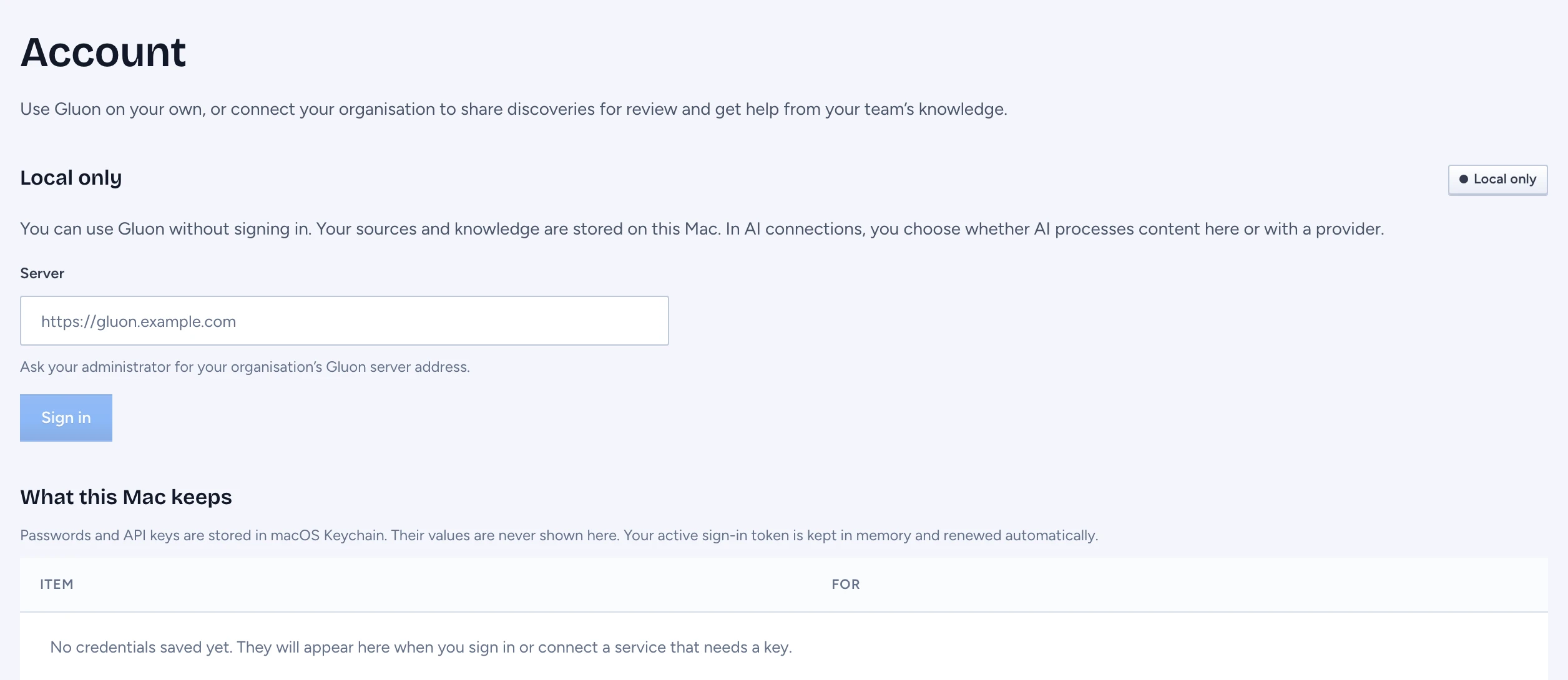
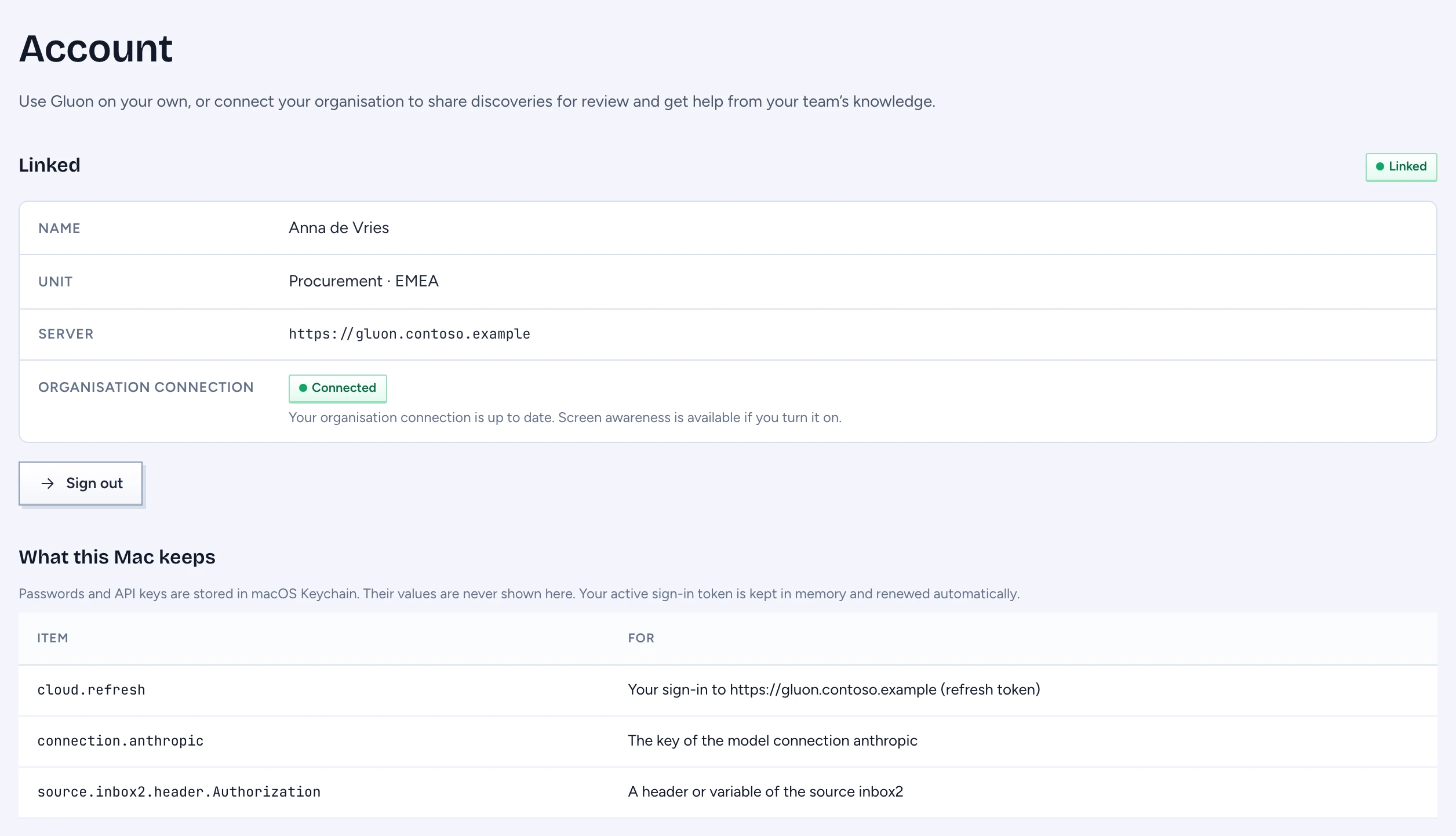
Gluon Desktop: your Gluon on your Mac. Open Account from Settings › Account, or from your name at the bottom left of the sidebar. Local mode: sources, knowledge, models and chat stay on the Mac. Link mode: cloud signed pack for the assistant, cloud decisions, and review inbox delivery for accepted types.
Two modes
| Mode | What runs where |
|---|---|
| Local (not linked) | The assistant recognises with the app's own pack and decides on this Mac, with a model that passed the Screen suggestion check or, without one, with its built-in rule. Account offers the sign-in. Send to review is refused. |
| Linked (signed in) | The assistant gets your signed pack from the server and decides in the cloud, unless your model for Offer help on screen passed the Screen suggestion check and Use this model when connected to my organisation is on. Send to review goes to the server under your account. Sources, chat and the GOL folder still stay on the Mac. |
See whether this Mac is linked
The block at the bottom left of the sidebar says it on every screen: Personal workspace and On this Mac when nothing is linked, your name and Linked to host when you are signed in. Press it to open Account. The card on Account says Local only or Linked.
Sign in with the cloud
- Open Account (Settings › Account, or press your name in the sidebar). While the Mac is not linked, the card says Local only.
- Enter your organisation's Gluon address in Server. Ask your administrator for it. It must use https, or http to
localhostor a.testhost, without a user name or password; otherwise the screen says "Could not start sign-in. Enter a valid HTTPS server address without a username or password. Local development servers can use HTTP." - Press Sign in. Your browser opens your organisation's sign-in page; with single sign-on you may pass straight through. The screen says "Finish sign-in in the browser. Gluon resumes when you return."
- The browser hands you back to Gluon (the
gluon://authlink) and the app finishes the sign-in. The card then says Linked, with your name, unit, the server and Organisation connection.
You can also choose Sign in to Gluon… in the Gluon Assistant menu in the menu bar, or press Sign in under Compare with the cloud on the Playground. Both start the same sign-in.
The sign-in is finished by the installed app only. A development build of Gluon Desktop cannot receive the gluon://auth link yet; for a development server it takes a development token instead (gluon dev-token), entered on the Playground, and release builds ignore that token.
Sign out
On Account, press Sign out and confirm, or choose Sign out of Gluon in the Gluon Assistant menu. The confirm says "Sign out of Gluon?". Gluon Desktop ends the session on the server, forgets the session on the Mac and goes back to the app's own pack at once, so screen awareness uses Gluon's built-in knowledge. Your sources, records, saved discoveries and GOL folder stay. The conversation in Chat is cleared.
What is kept, and where
What this Mac keeps on Account lists every item in your macOS Keychain by name and what it is for: your sign-in to the server, the keys of your model connections and the headers or variables of your sources. Values never reach the window. A development build keeps these items in an owner-only file in its data directory instead of the keychain.
- The refresh token is one item in your login keychain, bound to the server that issued it. If you change Server, the Mac reads as signed out and never sends the old token to the new address.
- The access token lives in memory only and is renewed when less than two minutes remain. If the server refuses a renewal, the Mac signs out.
- A sign-in you started and did not finish expires after 10 minutes. Signing out cancels it.
The organisation connection, and what "interrupted" means
While linked, the app holds an open event stream to the server: the lease. Account calls it Organisation connection. The server uses it to say the assistant may run, to send your organisation's list of apps never to watch, and to stop the assistant at once when an administrator pauses it. Account shows its state with what it means; the assistant reads the lease from the app and shows its state on the blob.
| Account says | Blob says | Meaning |
|---|---|---|
| Local | (watching as usual) | not linked; the assistant runs on the app's own pack ("Using Gluon's built-in knowledge on this Mac.") |
| Connecting | Connecting | the stream is open; your organisation's privacy settings (the list of apps never to watch) have not arrived yet |
| Connected | (watching as usual) | linked and current; screen awareness is available if you turn it on |
| Disabled | Assistant: Disabled (reason) | an administrator paused screen awareness for your organisation, for you or for this Mac |
| Connection interrupted | Not connected | the server sent nothing for 45 seconds; screen awareness pauses and the app dials again |
An interrupted connection is not an error you need to fix. It usually means the network dropped or the server restarted. The app redials with growing pauses of up to 2 minutes, and watching resumes on its own once the lease is alive and a fresh pack has arrived. If the blob says Open Gluon, the app itself is not running: open Gluon Desktop.
Limits
- The address of the server is the app's own setting. A managed
serverURLfrom your MDM is not read yet.