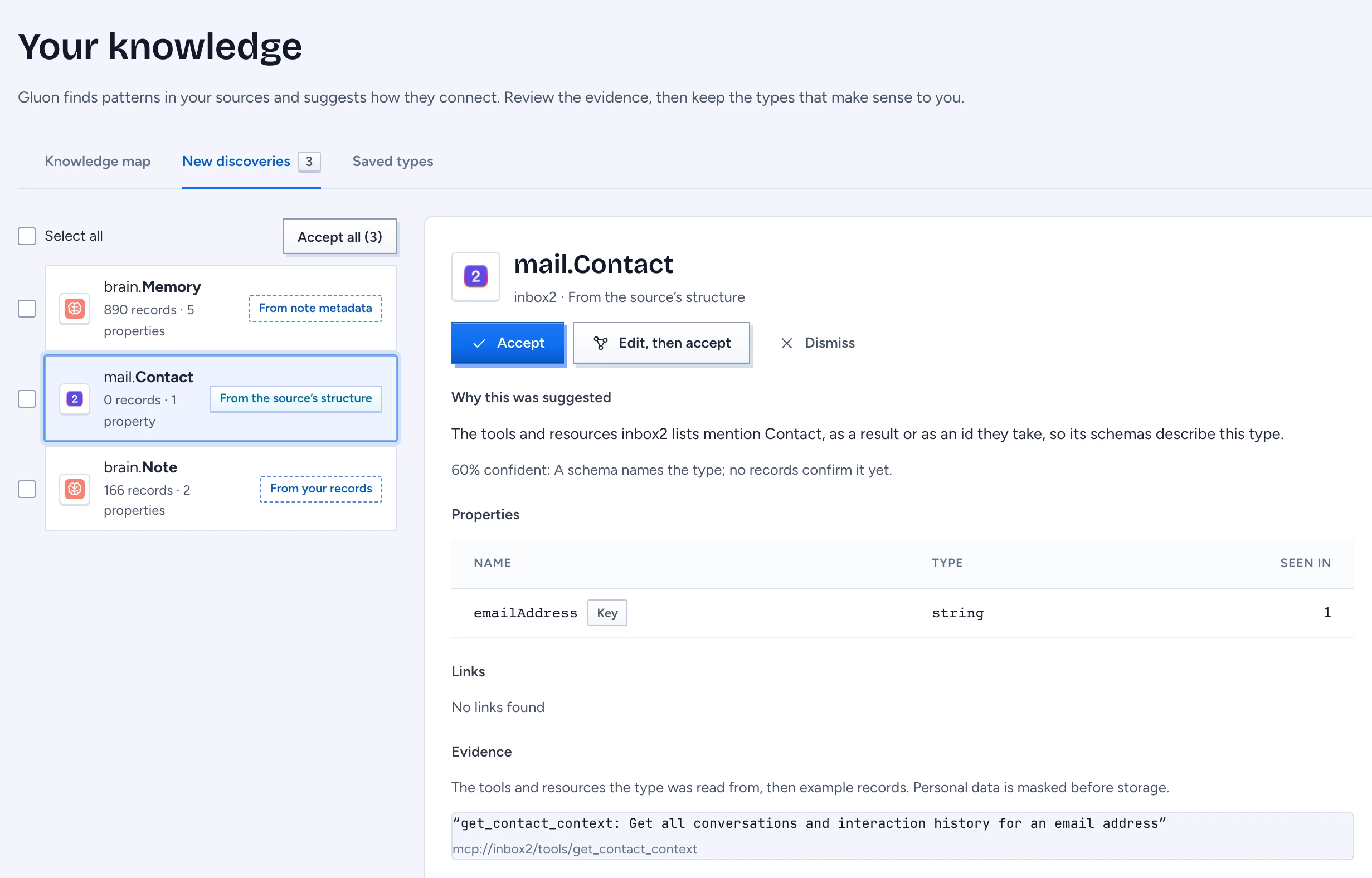
Knowledge: what Gluon discovered in your sources, and what you kept. Discovery: one suggested type, such as brain.Memory or mail.Contact, with properties, links and evidence. Destination: keep it in a GOL folder on your Mac, edit it, then send it to your team's review inbox on the Gluon server. Open it from Knowledge in the sidebar; a number beside it counts discoveries waiting. On Chat, Review discoveries opens the same screen.
One person owns everything on the Mac, so nothing here is withheld and nothing needs an approval. Your team's review happens in the cloud, after you send.
Explore the knowledge map
Knowledge in the sidebar opens on the Knowledge map tab: every saved and discovered concept on one read-only canvas, coloured by domain. The screen is titled "Your knowledge"; its tabs are Knowledge map, New discoveries and Saved types.
- Find a concept… searches by name; pick a result to select it. All groups filters the map to one domain. The count reads "n concepts · m relationships".
- Click a concept. Concept details shows its domain and state (Saved, New discovery, or Referenced concept: another concept links to it but Gluon has no details yet), Connected concepts and Information this concept holds. Edit saved concept opens the type editor, and its Back returns to the map as you left it, with the same concept selected. Review discovery opens it under New discoveries, where Back to knowledge map does the same.
- A referenced concept has Rename. Type the new name (a capital letter first, letters and digits only, like
DesignCanvas) and press Rename everywhere: every waiting discovery and saved type in its knowledge group that links to it links to the new name, and the toast counts the places changed. A concept of the same name in another group is a different concept and keeps its name. Later reads of your sources keep the new name, whichever note or record used the old one. A name Gluon refuses says why. Selecting another concept drops a rename you had not finished. Renaming it to a concept that already exists points those links at that concept. - Opening the map shows grey placeholder boxes while Gluon places the concepts (a second or two for a hundred or so), then the map appears in place. Concepts are placed by how closely they are related: a concept with many links sits among the concepts it links to. Selecting a concept names each line it touches with its relationship (up to 30 lines); point at any line to see its name. A relationship whose name only repeats the other concept's name ("codes" to Code) is left unnamed: the details read Links to Code or Linked from Note.
- The map opens on its busiest part, where most concepts sit together. Drag to move the map; scroll to zoom. Leave the map and come back, and it opens where you left it until Gluon restarts. Zoomed out, each knowledge group is a circle: click it to zoom in, drag from it to move the map. Full screen (and Escape or Exit full screen to leave it) keeps the zoom and the concept in the middle where they were. With nothing saved or discovered yet, the map says "Your knowledge map starts here" and Connect a source opens Sources.
Review a discovery
-
Open Knowledge and the New discoveries tab (Review discoveries on Chat opens it directly). It lists the discoveries: the domain and type, how many records and properties, and where the type came from:
Badge Found in From the source's structure the MCP server's tool and resource descriptions, before any record was read From note metadata the frontmatter of notes in a folder From your records the fields of records that were read Suggested by AI a sample of records read by your model for Discover knowledge From the source's tables a database's tables, their keys and the references between them -
Select a discovery. Each one carries its source's mark, in the list and in the detail. The detail starts with Why this was suggested: one sentence in plain words, for example that 166 notes in
brainhave no type in their metadata and are grouped as Note, or that an AI model found Organization mentioned in 13 records while no record in the source has that type yet. Under it, the confidence and what it rests on: records that name the type themselves, a grouping by Gluon, a schema with or without records, or only what an AI model read in the text. Then:- Properties: the name, the value type and in how many records it was seen; the identifying property is marked Key. A property is proposed when at least a fifth of the records carry it.
- Links: to other types, with how often each was seen (at least a tenth of the records).
- Evidence: up to three examples, each with where it sits: the frontmatter line that names the type (
node_type: memory), a tool's description, the passage the model read, or, for a group of notes without a type, the titles of a few of them. Personal data was masked before the quote was stored. A type from a database's tables quotes nothing: its evidence names the table and, for each link, the columns it was read from, such aspublic.invoice.customer_id → public.customer.id. - Projects these notes are filed under: for a folder, the project folders (
Projects/<name>/) its notes sit in and how many each holds.
A new read rewrites discoveries still waiting for you. Those you accepted or dismissed stay as you left them.
Accept, edit or dismiss
Accepted types become part of your local ontology. After each action the count in the sidebar and the banner on Chat update.
- Accept writes the type into the GOL folder as it stands. The toast names the file, such as "Accepted into domains/brain/objects/memory.yaml".
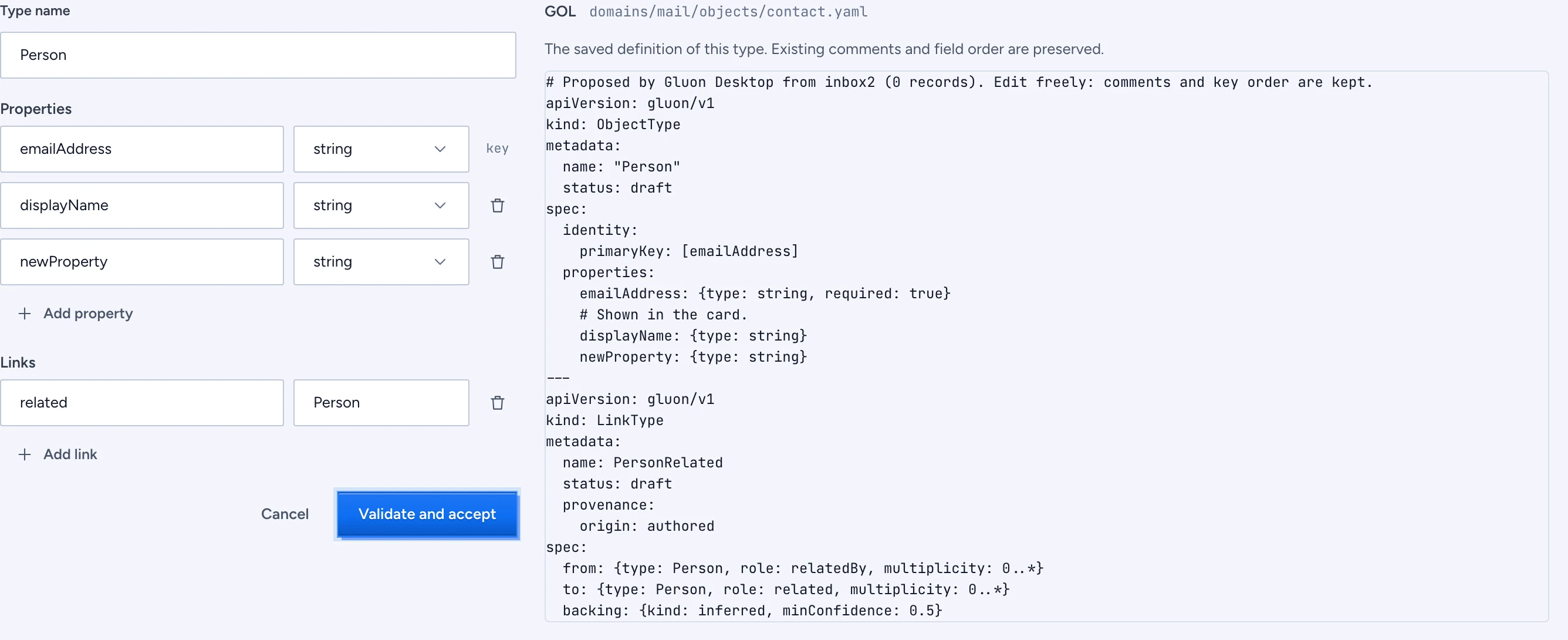
- Edit, then accept opens the type editor first (below), and Validate and accept writes your version.
- Dismiss takes the discovery off the list. A later read does not bring it back.
Every save is validated against the whole folder. When the file has an error, nothing is written and the errors are listed under "This type needs a correction before it can be saved".
What is written: an ObjectType with status: draft and a provenance block (origin: mined, agent: gluon-desktop/<version>, the confidence and the evidence, each quote with source: source:desktop-mcp), plus its links as LinkType documents in the same file. A link to a type you have not accepted yet is left as a comment that says it waits for that type. Each link is named after its type and role (TestFile for Test's link to File). If that name is taken, the link gets Link on the end (TestFileLink). If you later accept a type with the same name as an earlier link, that link is renamed so the type can take the name. The first accept also creates the folder's package (local/desktop), the desktop-mcp Source and the domain.
Edit a type
The type editor has the form on the left and the GOL on the right, which follows every change.
- Type name: rename the type. Links in your other saved types that point at it take the new name when you save.
- Properties: rename a property, pick its value type (
string,text,markdown,boolean,integer,long,double,date,datetime,uri,json,list<string>) or remove it; Add property adds one. The key property cannot be removed. - Links: change a link's name or target type, or remove it; Add link adds one.
Your comments and the order of the keys in the file are kept. Press Validate and save (an accepted type) or Validate and accept (a discovery). Warnings do not stop a save: "Saved with 1 warning". Cancel or Back leaves without saving.
Send types to your team's review inbox
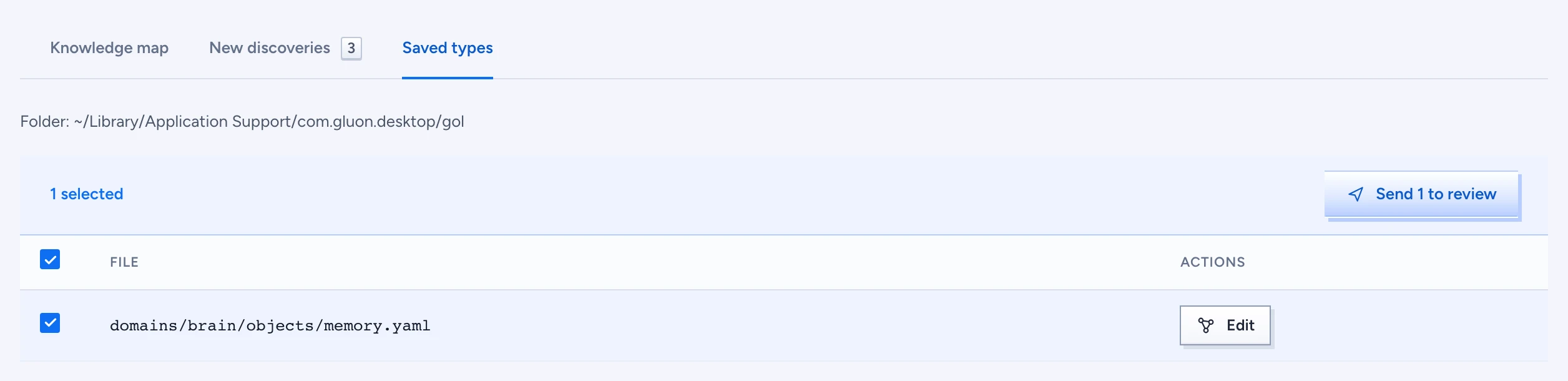
- Open the Saved types tab. It lists the files in the GOL folder (
Folder:names where it is on the Mac). - Tick the files to send.
- Press Send n to review. The toast says how many elements arrived: "Sent to the review inbox: 1 element".
Gluon Desktop sends the files to your Gluon server under your account, with every element's status changed to proposed and your comments kept. Reviewers find them in the designer's Review inbox with the agent gluon-desktop/<version>; see Review what the swarm proposes. The files on your Mac stay draft.
| Toast | Meaning |
|---|---|
| Connect your organisation in Account to send types for team review. | you are not signed in; see Link Gluon Desktop to your Gluon server |
| Server: did not accept them. | the server refused the files, for example because you may not propose in that domain or its package has no desktop-mcp Source |
Other states
- You're all caught up: no discoveries waiting. Read a source to find new ones; Go to sources takes you there. The types you kept are under Saved types.
- No saved types yet: keep a discovery from New discoveries.
- Could not load your discoveries: press Retry.