Assistant: small floating blob that comes with Gluon Desktop. When enabled, it reads the front window, recognises records your pack knows (a supplier, a contract number) and offers help with them. Helper app: Gluon Assistant, inside Gluon Desktop. Login item: registered by the app. Network path: only the app's local service on your Mac. Cloud sign-in: never held by the helper. Sign-in location: Settings › Account in Gluon Desktop. Sidebar state: On this Mac, or Linked to host. In the app it is called Screen awareness (Settings › Screen awareness); the bottom bar shows its state: off, unavailable, permission needed, on or paused.
The menu bar shows two Gluon icons: the planet is Gluon Desktop (click it to show or hide the window), the other is Gluon Assistant with its own menu.
Turn it on
- Grant Accessibility. Choose Accessibility permission… in the Gluon Assistant menu and allow Gluon Assistant in System Settings › Privacy & Security › Accessibility. Until you do, the blob says "Accessibility: Not granted".
- Switch on Watching in the same menu. Only you can switch it on, and only from the Gluon Assistant menu (or the blob's own menu): the app cannot switch it on, and a value forced by MDM counts as off.
- Open a page or form that mentions something in your pack. When the assistant has an offer, the blob pulses; hover over it to see the card, click to pin it.
Screen Recording is optional. The assistant asks for it only when you turn on OCR, for apps the Accessibility API cannot read.
Switch it off, or keep it away from an app
- Switch Watching off. The blob turns grey and still, and nothing is read. The bottom bar says Screen awareness off.
- Choose Never watch the app in front to add that app to your own list. Password managers, conferencing apps and Keynote are on the built-in list; your organisation can add more, and the assistant reads nothing in any of them.
- Quit Gluon Desktop (⌘Q, then Quit). The assistant quits with it, and Quit Gluon in the assistant's menu quits both too. Watching stops until Gluon opens again. Closing the window with the red light only hides it; the assistant keeps running.
What it reads, what it sends, what it never sends
The assistant waits until you stop typing for a second, then reads the focused window: up to 600 elements in 300 milliseconds. Password fields are skipped, label and value. It reads nothing while the screen is locked, while your screen is shared (the bottom bar says Screen awareness paused), or in an app on a deny list.
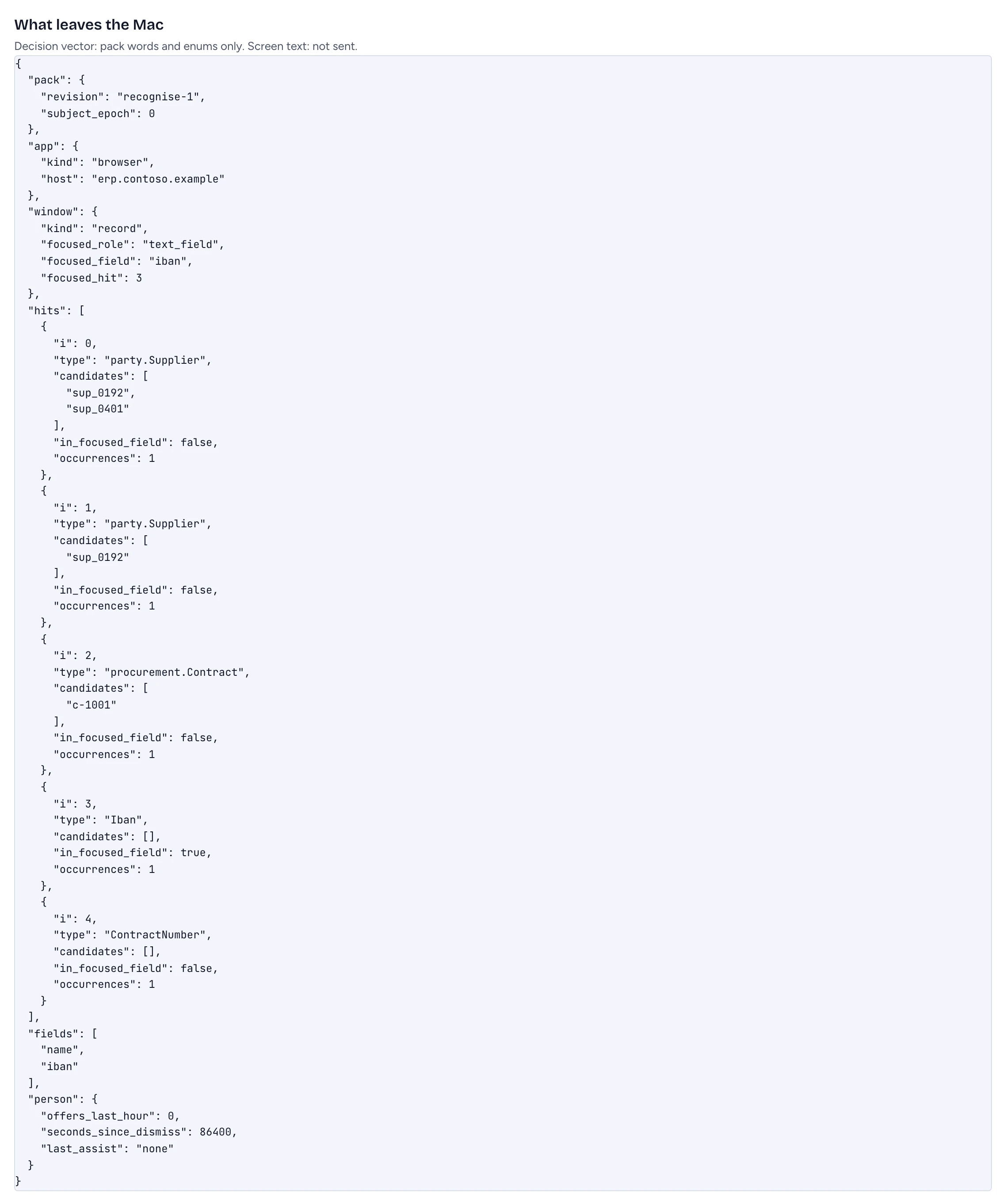
The text it reads goes to the app's local service on 127.0.0.1 and nowhere else. The service finds what your pack knows and builds a vector: the kind of app and window, which pack type or record is in the focused field, the hits by type and record id, and the field names it recognised. Open the Playground (menu Develop › Recognition Playground) to see exactly what a vector holds for a screen you paste.
| Leaves the Mac (linked only) | Never leaves the Mac |
|---|---|
| The vector: pack words, fixed categories and record ids | The text on your screen |
| A question or a cross-check value, only when you send it yourself | Screenshots or OCR images (none are kept) |
| A heartbeat: app and macOS version, permissions, Watching, pack revision | Your sources, records, chat and GOL folder |
Not linked, nothing leaves the Mac, unless your model for screen suggestions is a System One server at another address. What left this Mac… in the menu lists every decision request the assistant made in this session, to the cloud or to the app, up to 200; the list is wiped when you sign out.
Where a decision is made
A decision is whether to offer help, and with what. Gluon Desktop picks the lane for each one:
| You are | Your model for Offer help on screen | Decision made |
|---|---|---|
| Not linked | passed the Screen suggestion check | by that model: on this Mac for a local model file, at its address for a System One server |
| Not linked | none, or not passed | on this Mac, by the assistant's built-in rule |
| Linked | passed the check, Use this model when connected to my organisation on | by that model, as above |
| Linked | anything else | in the cloud, under your organisation's model settings |
The Screen suggestion check (the "d0 gate") is a fixed test of 200 screens that a local model must pass before it may decide; see Choose the AI that answers and discovers. A local decision that takes more than 10 seconds counts as failed.
What the blob shows
| Blob | Meaning |
|---|---|
| Grey and still | Watching is off |
| Blue and slow | watching |
| Pink and fast, with the assist named | it has an offer: hover for the card |
| Grey with a reason | something stops it: the reason says what |
| Reason | Meaning |
|---|---|
| Accessibility: Not granted | grant Accessibility to Gluon Assistant |
| Open Gluon | Gluon Desktop is not running |
| Connecting | linked, waiting for the server's list of apps never to watch |
| Not connected | the server has been silent for 45 seconds; see Link Gluon Desktop to your Gluon server |
| Assistant: Disabled (reason) | an administrator paused it |
| Pack: Not loaded | there is nothing to recognise yet |
| Pack: Expired | the signed pack passed its 24 hours; a new one is fetched |
For the card, the assists and the launcher (⌥Space), see Use object cards, field explanations and cross-checks. For support, choose Save diagnostics…: it saves a zip with versions, permissions and the last 200 log events reduced to a fixed list of fields, for you to preview and send yourself.