Before you act on an answer, you can follow any claim back to the passage it cites, open the object it talks about, and trace a single field to the table and column it was loaded from. All three views are checked against your access, so they show what you may see and say plainly what is held back.
Start with the trace
Press Explain, at the top right of the answer, to open its trace page. The trace sums up how the answer was made: how many reads Gluon made and the model, with one badge when something needs your attention; under it, How this was reached shows the links followed between objects, and the facts the answer saw. See See how an answer was made.
Open a citation
- Select a numbered cite in the answer, or a source in the Sources rail. Each source in the rail shows its own date when it has one: updated 10 Mar 2026 is when the source last changed the document, and a plain date is the record's own date, such as when an issue was raised. When two sources disagree, the dates show which is newer.
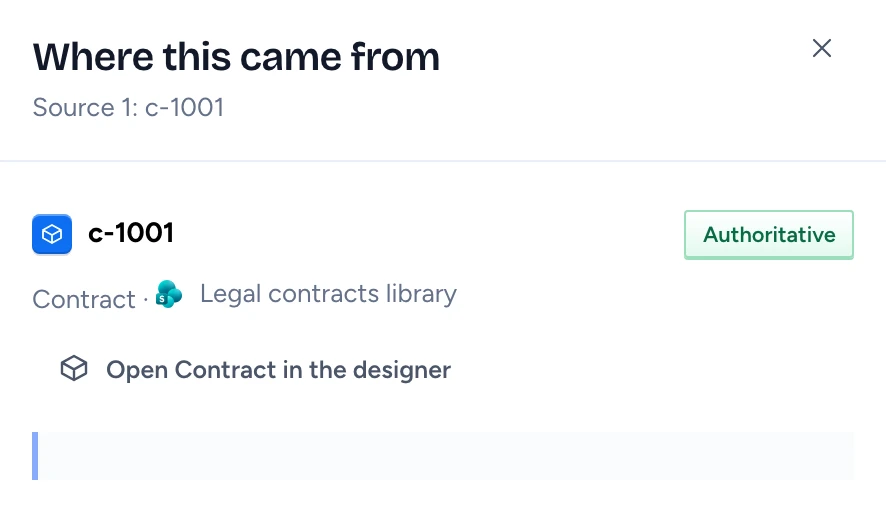
- The Where this came from sheet opens with the source number, the object, its type and source system (with that system's logo, such as SharePoint), and the passage with the cited words highlighted.
- A record from the ontology shows its object type's tile and type, and only the record's own fields. If you may use the designer, Open in the designer opens that object type there, in a new tab.
- Read the trust label beside the title. The ontology sets it per source: Authoritative, Curated, From a discussion or Unverified. From a discussion marks a mail or chat source such as Outlook or Slack, so treat it as what someone said.
See a passage on its page
A passage from a Word, PDF or PowerPoint file that Gluon read itself knows where it sits in the file. Its sheet then offers Open on page 3 (or Open on pages 3 to 4).
Such a file also shows under the answer like a mail attachment. Selecting it opens the sheet with the page already shown.
- Select Open on page in the Where this came from sheet.
- The document opens in the same sheet at the cited page, with the passage boxed. While the file opens, the page shows a spinner and Opening the page…, and the page count says Page … until it is known. Use the arrows to go to the previous or next page, and Fit width, 100% or the zoom buttons to read it closer.
- Select Maximize to see the same page, with the passage boxed, in a window that fills almost the whole screen, for reading. Close it to return to the sheet.
- The passage text stays in the sheet under the page. Select Hide the page to close the page again.
You see the same copy of the file Gluon keeps for everyone: values masked for you are blacked out on the page as they are in the text. "This document is withheld from you" means you may read the passage but not the file, for example because it holds values masked for you and no blacked-out copy exists. Select Request access to ask its owner. A passage from a source that records no position, such as a record or a mail, has no Open on page.
Open an object
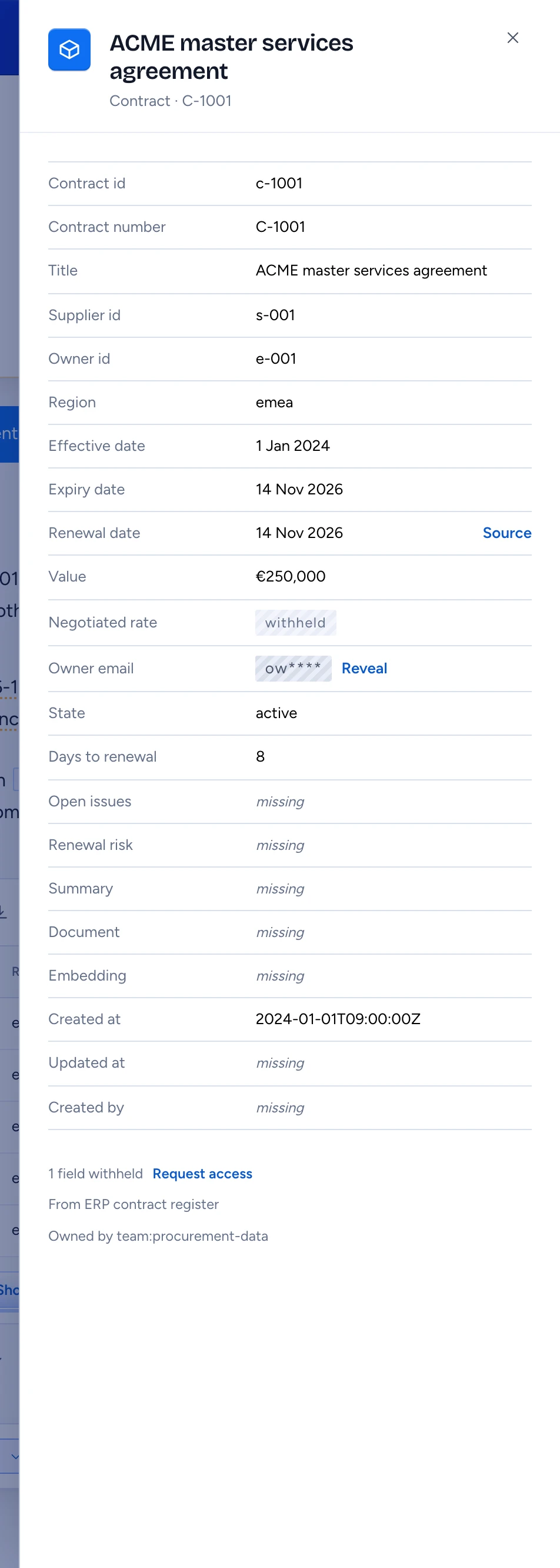
Select an object's title in the answer table or in a result set row. The object sheet lists every property your segments include:
- A masked value shows as a mask such as
ow****. Type owners and security officers get Reveal (see Handle masked values and request access). - A withheld property is named and marked withheld, and the sheet counts them under the list: "1 field withheld". Select Request access beside the count to ask for the object's type (see Handle masked values and request access).
- A missing property has no value in any source you may read. A computed property, such as days until a contract ends, is worked out from the values you can see; it stays missing when one of them is masked or withheld for you.
Amounts show in their currency (€1,315,000) when the type names it.
Under the list the sheet says which system the object came from and when that system last synced ("From Financieel systeem ERP · synced 20 Oct, 09:00"), and the owners when the type names any. When the type says where its records live in that system, Open in … opens the record there, in a new tab; that system checks your access again. The link is only offered when the values it needs are visible to you. Each property whose origin was recorded has a Source link.
Trace a field to its source
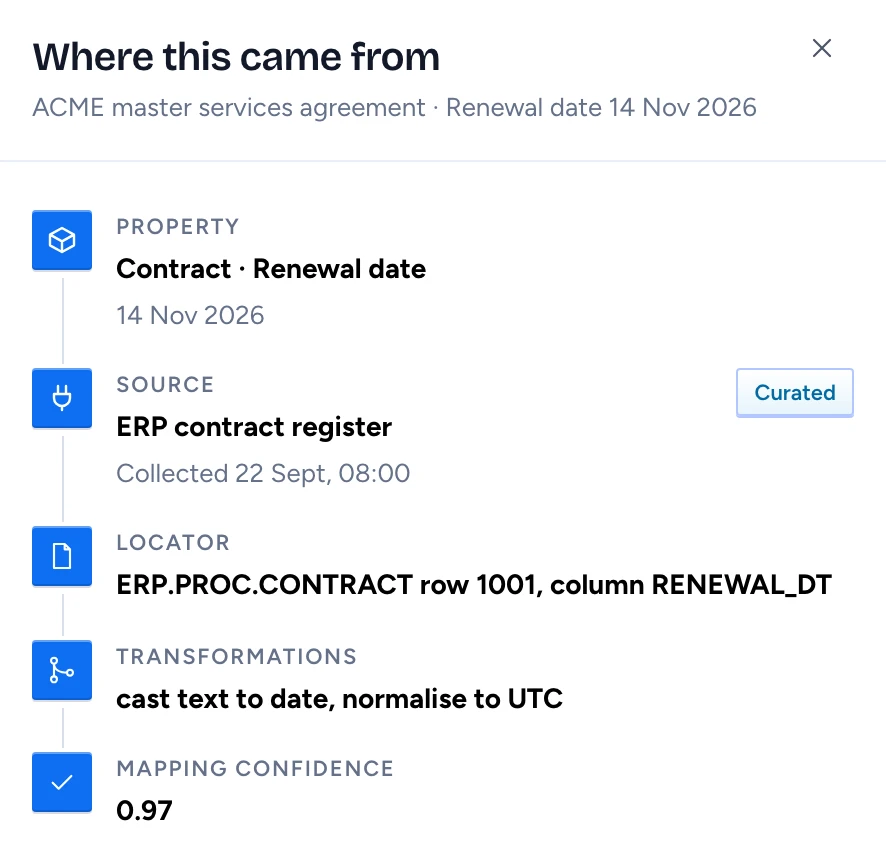
- Select Source on a property in the object sheet, Open lineage in How this was reached on the answer's trace page (press Explain), or Open lineage on a fact there. Opened from the object sheet, the lineage lies on top of it: close it (or press Esc) to go back to the object.
- The sheet shows, top to bottom:
- Property: the type, the property and its value.
- Source: the source system, its trust label and when the value was collected.
- Locator: where in that system, for example "ERP.PROC.CONTRACT row 1001, column RENEWAL_DT".
- Transformations: what was done to the value on the way in, such as "cast text to date, normalise to UTC".
- Mapping confidence: a score from 0 to 1 for the match between the source column and the property.
"Nothing to trace here" means no origin was recorded for this value, or you may not see it.
When sources disagree or a value is missing
The attention card at the top of the conversation lists both cases. A conflict reads "Two sources disagree on the renewal date; both are shown with their sources." The lineage sheet repeats it under A second source disagrees: both values are kept as evidence and the steward has been told. A gap reads "No owner is recorded for c1." The same gap on several records is one row, such as "No organization is recorded for 10 of them.", with the first three records named under it. Check the source system before you act on either.
Relationship paths in How this was reached, on the answer's trace page, follow links between objects. An object at the far end that you may not see shows as "1 restricted object". Links outside your segments are left out.