Every conversation you start is kept in your history. Whenever you or anyone else opens it again, Gluon checks each claim against the reader's access at that moment.
Find an earlier chat
- The chat sidebar lists recent chats by day: Today, Yesterday, Previous 7 days and Earlier. Select one to open it.
- Type in Search chats at the top of the sidebar to narrow that list as you type. Press Enter to search all your chats on the Chats page.
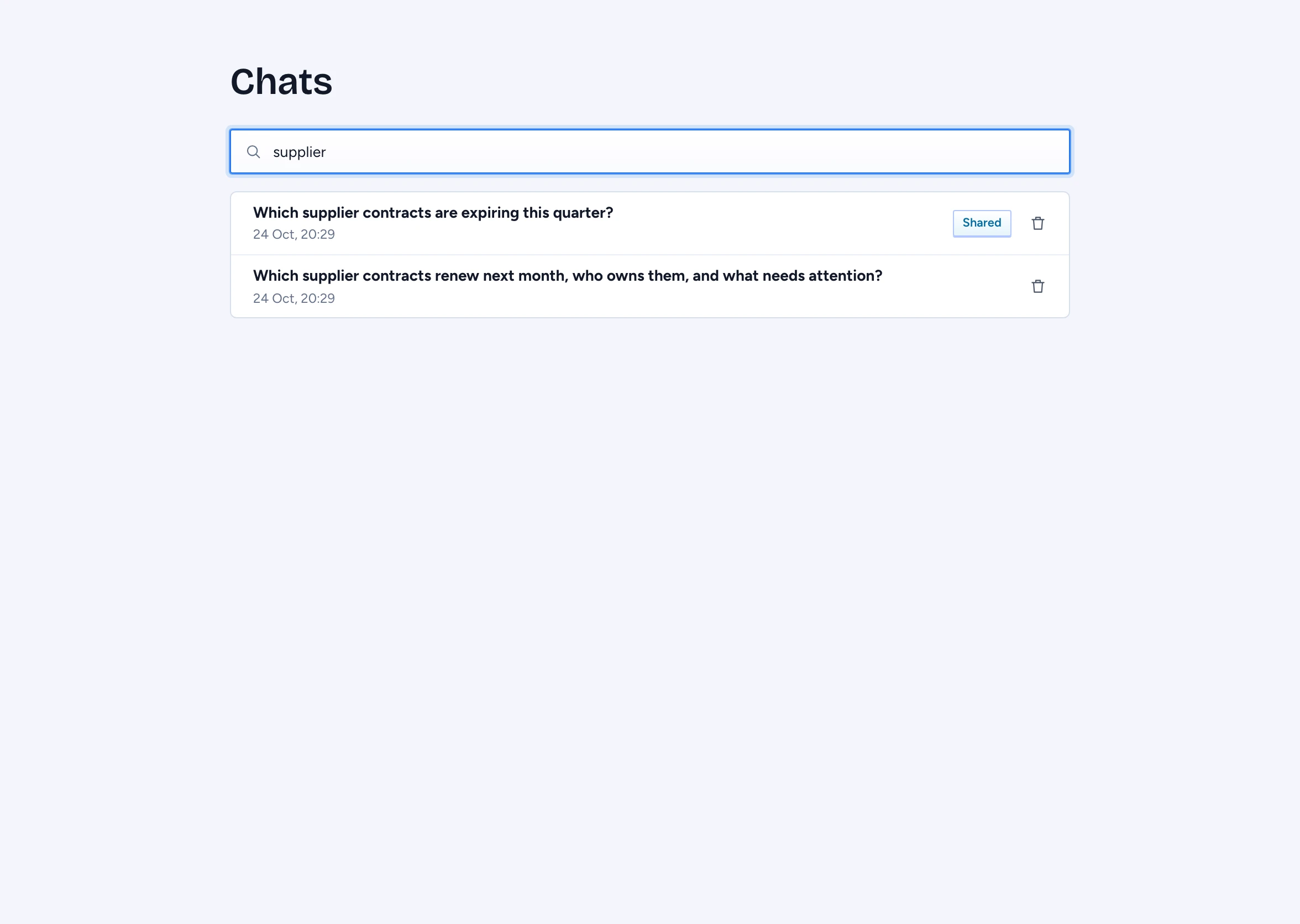
- For older chats, select All chats under the list. The Chats page lists every conversation with its time. Its Search chats matches chat titles and the questions you asked. Answers are left out, so search for words you typed.
Right-click a chat in the sidebar or on the Chats page for its menu: Open, Rename and Delete. Other places in the chat app keep your browser's own right-click menu.
Rename a chat
- Right-click the chat in the sidebar or on the Chats page and select Rename.
- In Rename chat, type the new Name (1 to 200 characters) and press Enter or select Rename.
The chat keeps its place in the list. Anyone you shared it with sees the new name. A chat under a legal hold cannot be renamed: the menu says "On legal hold: it cannot be renamed".
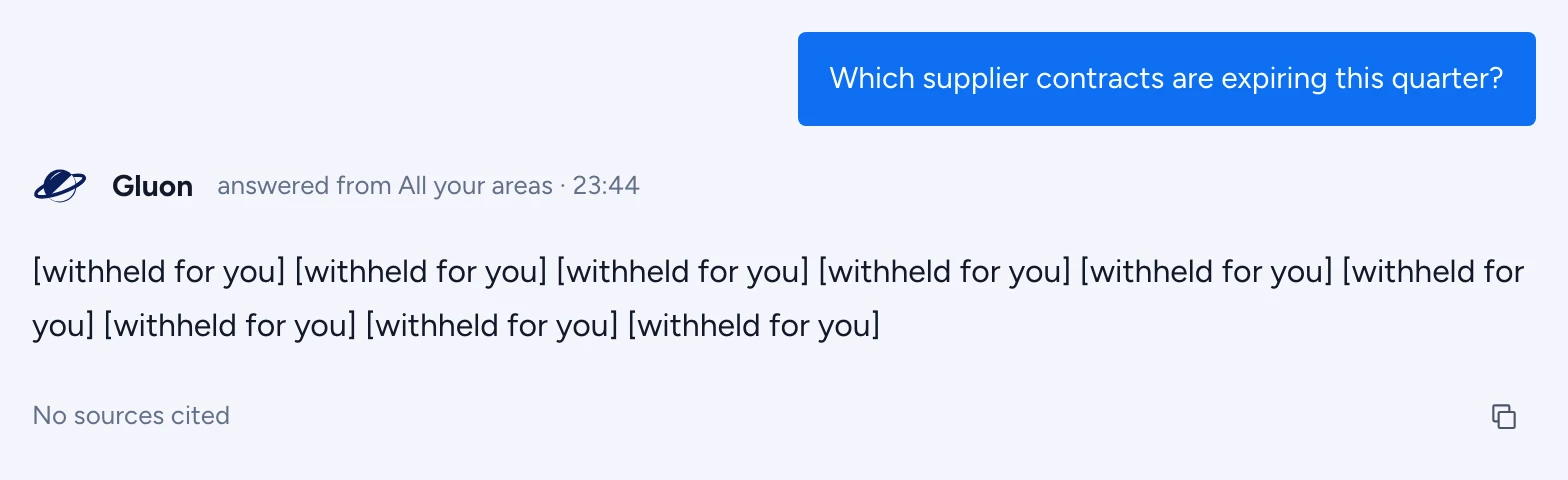
When you reopen a chat, each claim is checked again. A claim whose sources you can no longer see reads "withheld for you". Result sets and relationship paths are not kept in history, so ask again to get a fresh table.
Share a chat
- Open the chat and select Share.
- In Share this chat, select Create link, then Copy link.
- Send the link to your colleague.
Your colleague sees the chat read only, under "Shared with you, checked against what you may see". Your questions appear as you wrote them. The answers, sources and object details are rebuilt for their access: a claim whose sources they may not see reads "withheld for you". Sharing a link gives them no access to anything. On the Chats page, a shared chat carries a Shared badge.
The chat app has no button to stop sharing yet. To revoke a link, call DELETE /api/chat/conversations/{id}/share.
Delete a chat
- On the Chats page, select the bin icon on the chat's row, or right-click the chat and select Delete.
- The dialog asks "Delete "…"?". Select Delete chat.
The chat leaves your chats, and any link you shared stops working. Gluon keeps the chat itself: your security office can still open it, and only a security officer can erase it for good. A chat with a Legal hold badge can be deleted the same way. The hold keeps it with your security office.