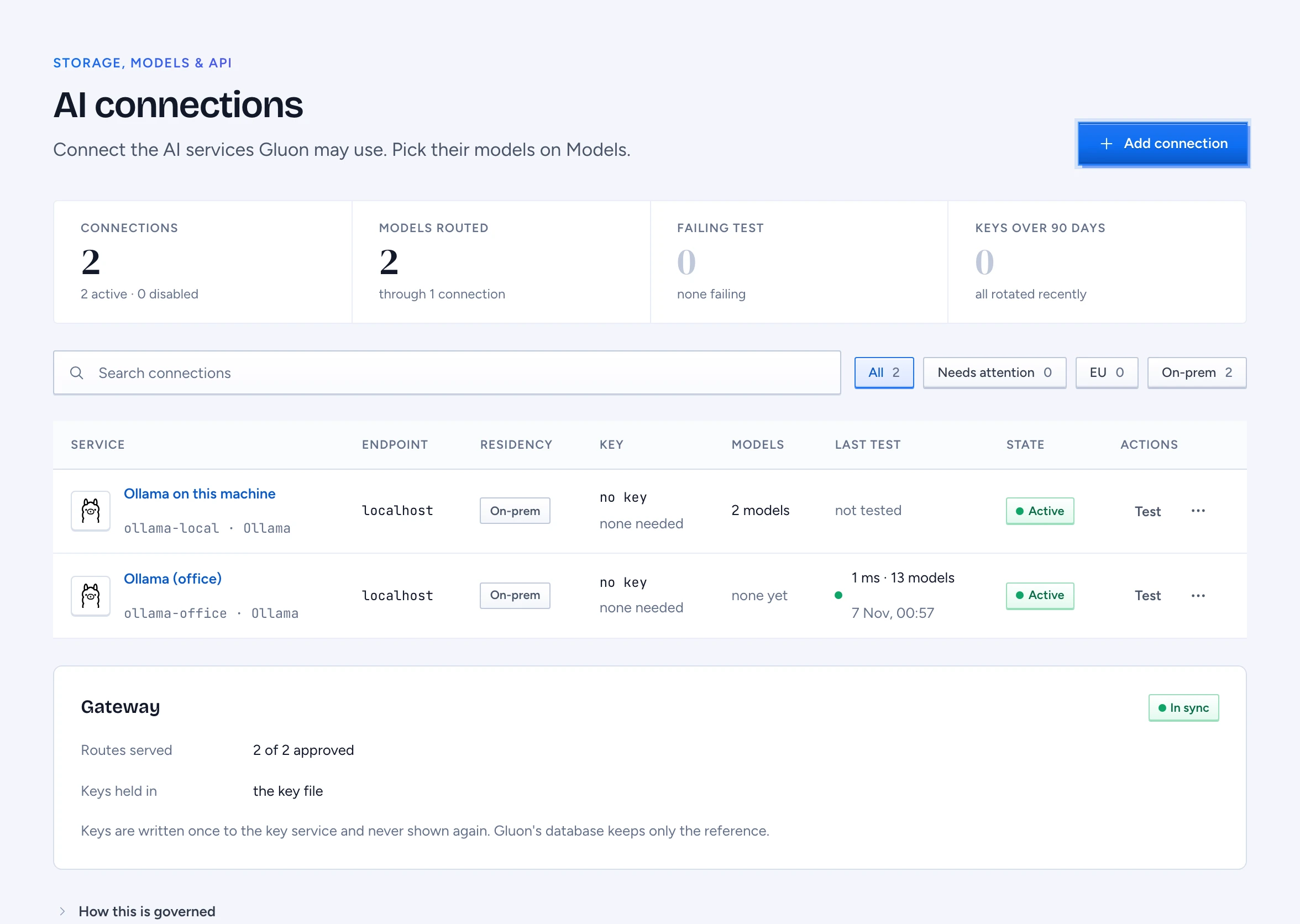
An AI connection is one AI service that Gluon may send text to: its address and its key. A connection on its own sends nothing. Only an approved Model that names the connection sends text through it, so the security officer still decides which model may receive which marked evidence.
Before you start
- You need the admin console role (it grants
manage-security). - For a cloud service, have its API key, or its cloud credentials for Amazon Bedrock and Google Vertex AI.
- For a model on your own hardware (Ollama, vLLM, LM Studio), its host must be on the platform allowlist (
ai_connection_hosts). Gluon refuses a private address that is not on the list.
Add a connection
- In the admin console, open Storage, models & API > AI connections and click Add connection.
- Pick the service: Anthropic, OpenAI, Azure OpenAI, Amazon Bedrock, Google Vertex AI, Mistral, Ollama, OpenAI-compatible for any server that speaks the OpenAI API, or System One (Jev), the decision service for the desktop assistant (its base URL defaults to https://api.typesafe.ai/v1/systemone; a key is required).
- Type a Name, for example
ollama-local. A Model uses this name as itsprovider, so choose it with care: you cannot change it later. - Fill in the fields the service needs. Anthropic takes a Workspace ID when its key is not scoped to a workspace (a key that starts
sk-ant-usr-): without it Anthropic refuses every request. Azure needs its endpoint and API version. Bedrock needs a region and an access key pair or an IAM role. Vertex needs a project, a location and a service-account key. - Type the key, or choose Held in the gateway's environment and type the environment variable name when your operators keep the key there.
- Choose the Residency: EU, US or On-prem. A Model approved for the EU region is not served through a US connection.
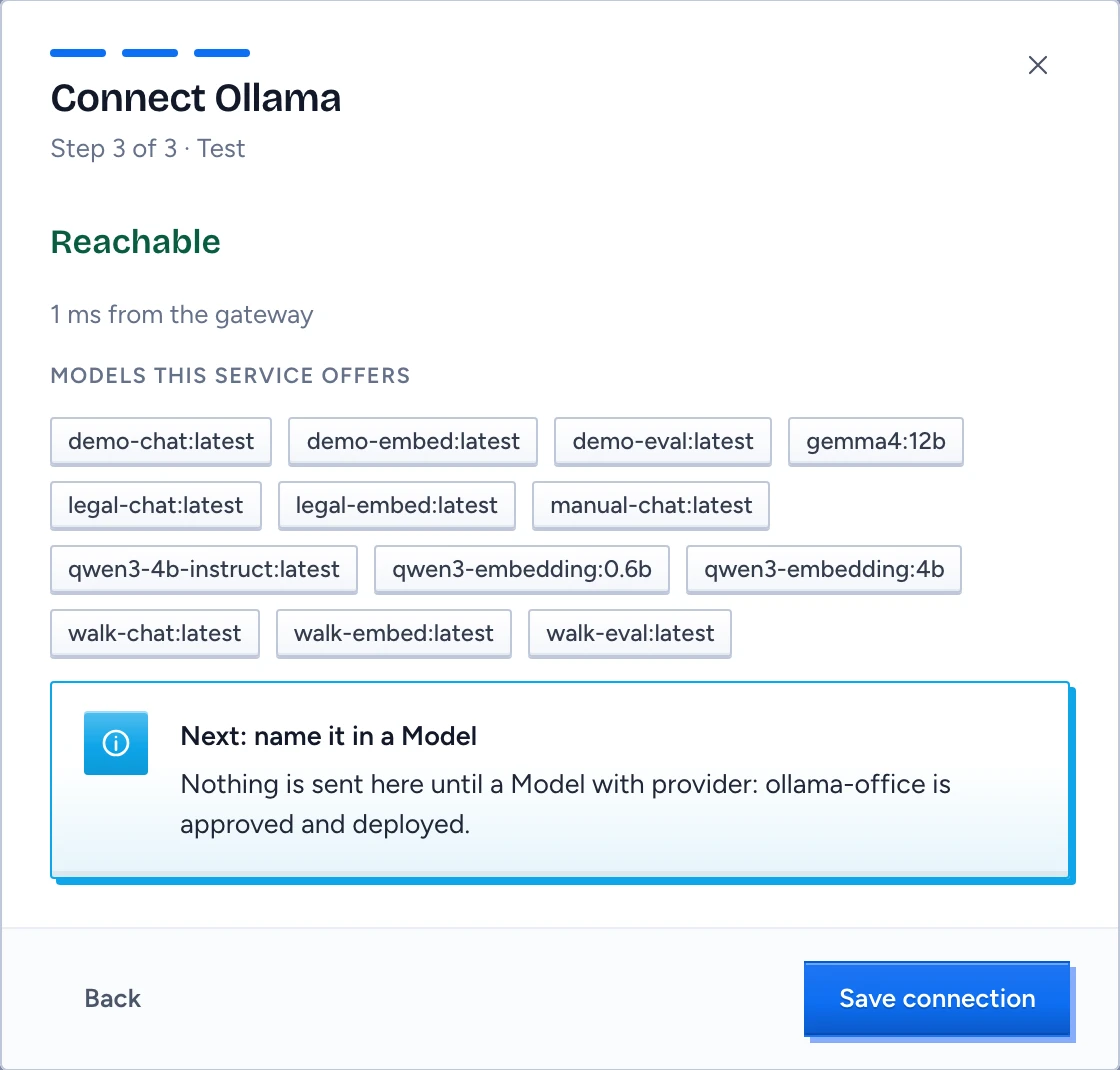
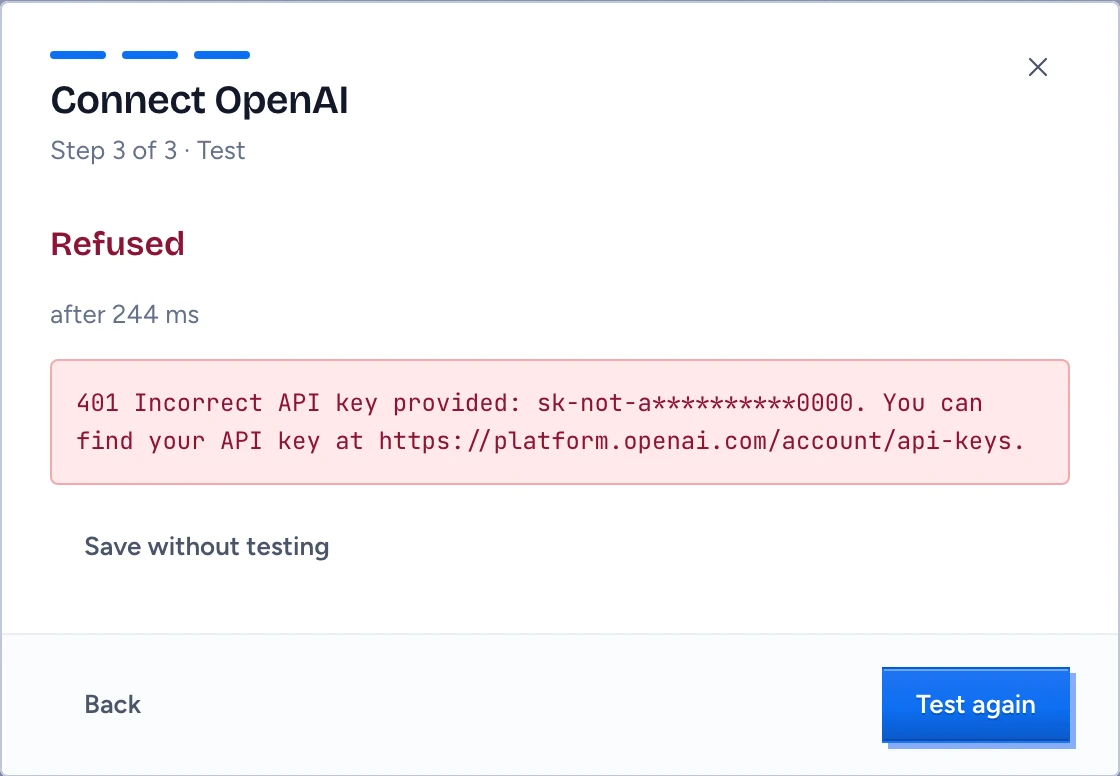
- Click Test connection. Gluon calls the service and shows how long it took and which models it offers, or the service's own error.
- Click Save connection. The key goes to the key service. Gluon keeps only a reference to it and its last four characters, and never shows the key again.
To send text through the connection, add or change a Model in the designer with provider: set to the connection's name, and have the proposal approved and deployed.
Read the list
Each row shows the service, its address, residency, the last four characters of the key and when it was set, the Models that name it, the last test and the state. A key set more than 90 days ago shows in red. The Gateway panel says how many of the routes the deployed Models need the gateway serves now, and why any are missing. A connection's detail panel also lists the console routes on Models that use it.
Rotate a key
- On the row, click Rotate key.
- Type the new key and click Rotate key.
Gluon writes the new key to the key service, moves the gateway to it, and only then revokes the old key. Requests keep flowing. If the gateway cannot be reached, the old key stays in use and the console says so.
Stop a connection
Click Disable in the row menu. Every Model that names the connection stops at once, on every channel. The model matrix shows them in red with the reason. Enable turns the connection back on.
You cannot delete a connection while a deployed Model names it. Gluon lists those Models. Move them to another connection by proposal first, or disable the connection.
Limits
- A test of an IAM role or of a key held in the gateway's environment happens with the first real request.
- Gluon always pushes the routes of your connections to the gateway: every minute and on each change here. Routes in the gateway's own config file (
gluon gateway-config, for providers without a connection) stay beside them. - A route in the gateway that has the same name as one Gluon pushes, but another upstream or owner, holds Gluon's route: the Model shows Blocked and the Gateway panel counts it as not served. Remove the duplicate from the gateway's config.
- Several Gluon servers can share one gateway. Each removes only the routes it pushed itself.