The kill switch turns off one element of the served ontology: an action, view, function, Capability, source or model. It needs no approval and no new version. Chat, the API and MCP refuse the element within 10 seconds.
Disable an element
- In the designer, open Versions & deployments > Deployments.
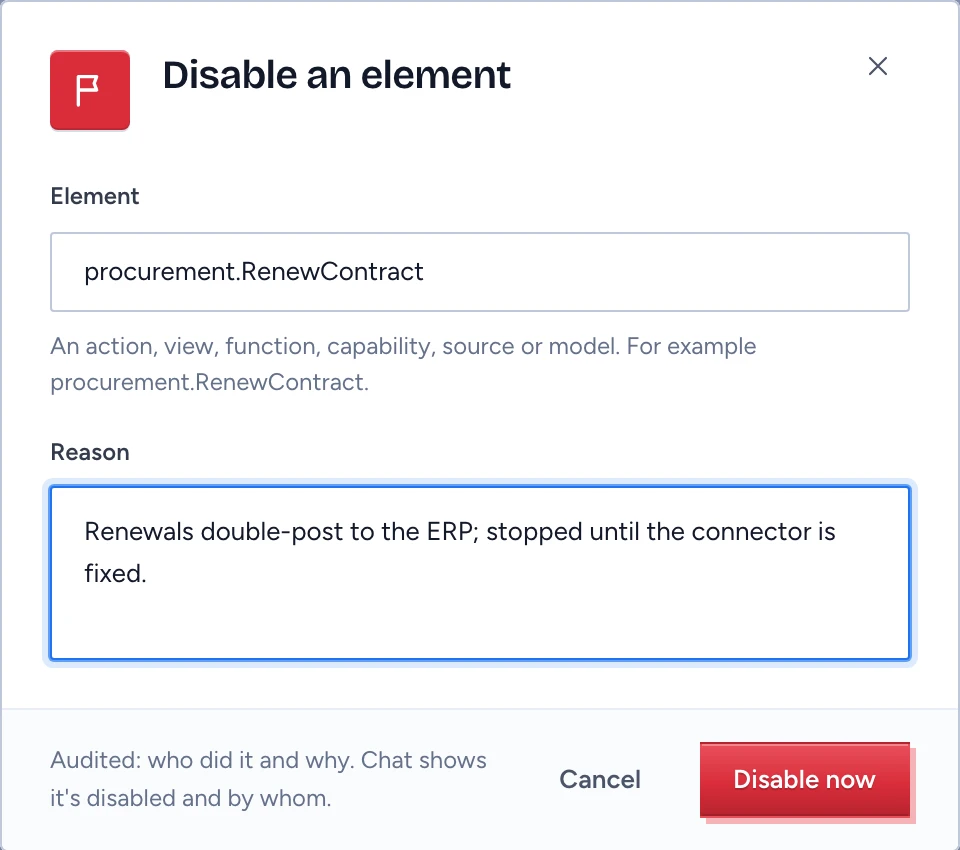
- In the Kill switch panel, click Disable an element.
- Type the element in Element:
procurement.RenewContractfor an action, or a prefixed name such ascapability:contract-renewal-desk,source:sharepoint-legalormodel:dev-gpt. - Write a Reason people will read, with the incident number and what you saw.
- Click Disable now.
Owners of the element, deployers and security officers may disable it. The disable covers every deployment in the environment, so an overlapping deployment cannot bypass it. From one deployment's own page you can turn on Only this deployment to narrow it. A model is always disabled for the whole environment.
What stops
- Chat cards and answers say the element is disabled, by whom, with your reason.
- Pending approvals for the action are voided and its queued runs are cancelled.
- A disabled source drops out of retrieval, so answers stop citing its records.
- Routing skips a disabled model, and the admin route tester shows the same result.
- The disable is audited with who and why. The element's owners and every security officer get a "Kill switch used" alert that nobody can mute.
An action run already handed off to Agent OS keeps running there. Stop it in Agent OS.
Enable it again
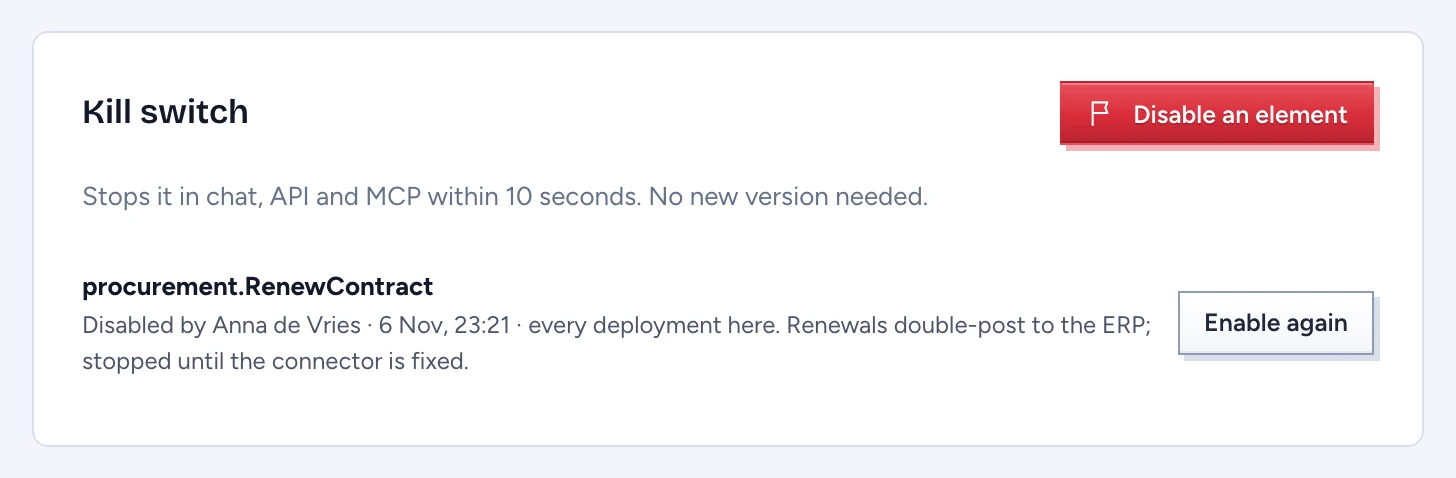
The entry stays in the Kill switch panel: "Disabled by", the name, the time, "every deployment here" or the one deployment, and the reason. Once the cause is fixed, click Enable again.
Only an owner of the element may enable it again; for a source or a model, a security officer may as well.
Related switches
Retiring a Capability in the admin console's Capability catalogue uses the same kill switch, with the reason recorded as a retirement. To stop the desktop assistant, use Pause every Mac under Storage, models & API > Channels and devices in the admin console.