A website source is a knowledge base that Gluon reads by crawling it: Confluence Data Center, Confluence Cloud, MediaWiki or a generic documentation site. Gluon reads each page like an uploaded document, so the pages answer questions with citations. The crawler is part of Gluon and runs on the desktop and in the cloud workers. It needs no external scraping service.
Before you start
- You need the platform administrator role in the cloud console. On the desktop, the source is yours.
- Know who may read the pages. Gluon does not copy the wiki's own page permissions: every page gets the access of the GOL Source.
- For a knowledge base that needs a login, have an Authorization header (for example a Confluence personal access token) or a browser session cookie.
Connect a website
- Open Sources, tools & skills > Sources and click Add a source. On the desktop, open Sources and click Add a source.
- Pick Website, then Next.
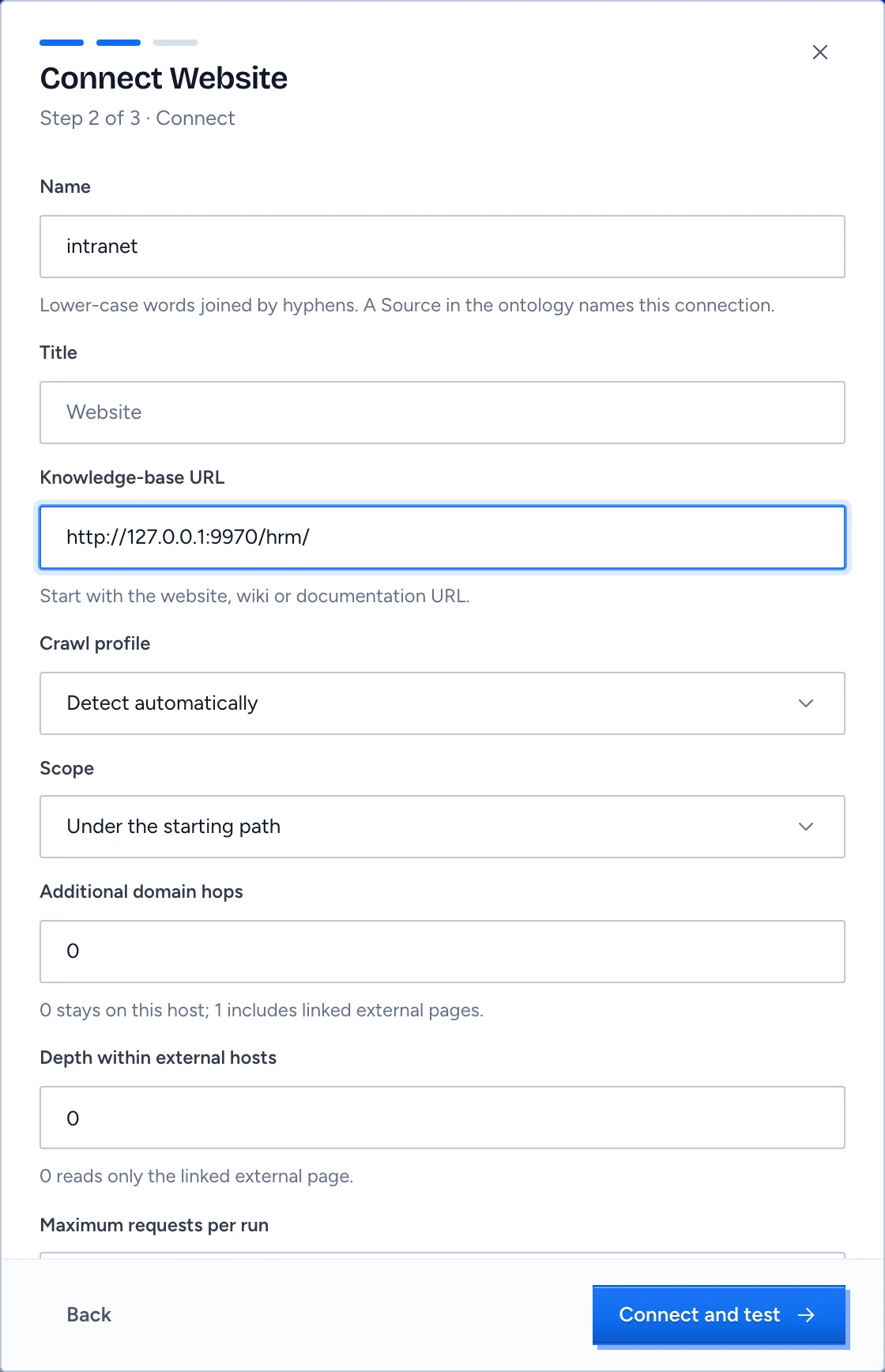
- Type a Name, such as
knowledge, and the Knowledge-base URL: the address of the website, wiki or documentation. - Choose the Crawl profile. Detect automatically finds Confluence and MediaWiki. Choose one yourself when detection picks the wrong one.
- Set the scope and the limits (see Choose the crawl scope).
- If the knowledge base needs a login, choose Authentication and paste the header or the cookie. Gluon stores it in the secret store and sends it only to the starting origin, never to another host.
- Click Connect and test. When the test reads the site, you see Website is readable and the profile it found.
- Click Use selected to save the connection.
On the desktop, the import starts when you finish the wizard. In the cloud, the crawl starts after you declare the Source. When the Source was declared before you connected, the crawl says Not started: open the source and click Refresh now to start the first run.
Declare the website Source
In the cloud, a website connection needs a deployed GOL Source with the same name. Choose its readers before the first crawl:
apiVersion: gluon/v1
kind: Source
metadata: { name: knowledge, title: Knowledge base }
spec:
  connector: "gluon:website@1"
  trust: curated
  acl: ignore
  access:
    acl: ["group:knowledge-readers"]
  pii: { scan: true, masker: default, onDetect: mask }
  deletes: propagate
Replace group:knowledge-readers with the principals who may read the pages. Without access, everyone in the namespace may read them. When you change access later, click Refresh now on the crawl: that run admits every page again under the new access. Until then, pages keep the access they were read with. Each page goes through the normal document pipeline: PII masking, chunking, and the policy check on every read.
Choose the crawl scope
- Scope: Under the starting path keeps the crawl inside the path of the URL. Entire host includes the other paths of the host.
- Additional domain hops: how many times a link may change host. 0 stays on the starting host. 1 also reads pages on hosts that the site links to directly. A sibling subdomain counts as a different host.
- Depth within external hosts: 0 reads only the linked external page and does not follow its links.
- Maximum requests per run: the crawl stops at this number and keeps its place. Increase it and click Resume to continue.
- Confluence spaces: space keys on Data Center, or space IDs on Cloud. Empty includes every space the credentials can read.
- Refresh interval: how often Gluon crawls again, in minutes. 0 turns scheduled refresh off.
- Allow private networks: needed for a knowledge base on an internal network or VPN. Cloud metadata and link-local addresses are always refused.
Gluon follows robots.txt. Pages that ask for a password or a browser check are reported, not indexed. Gluon solves the Anubis proof-of-work check itself, with a bound on the work. Other browser-only logins need a session cookie. Gluon does not run the JavaScript of a page.
Watch and control a crawl
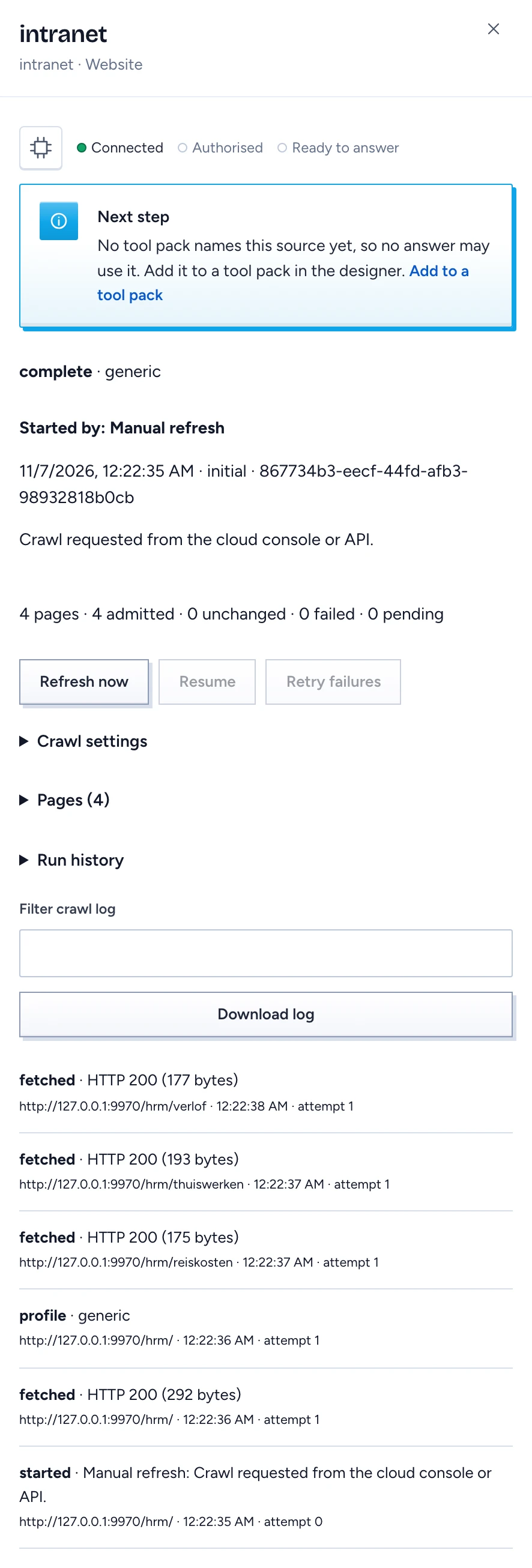
Open the website source in the cloud console, or click Crawl log on its row on the desktop. You see:
- the status and the profile, and why the last run started (manual, scheduled, or after a restart);
- the counts: pages, admitted, unchanged, failed and pending;
- Refresh now, Resume and Retry failures while the crawl is stopped, and Pause and Cancel while it runs;
- Crawl settings, to change the URL, scope, limits, excluded path prefixes and credentials. An empty credentials field keeps the saved ones. When the URL moves to another host, scheme or port, the saved credentials are cleared: set them again for the new address;
- Pages, Run history, and the crawl log, which you can filter and download.
A crawl keeps its place across restarts. A refresh keeps each page's id, compares the content, and uses the site's caching headers where it can. When Confluence or MediaWiki lists all pages, a page that is gone is removed. An incomplete listing never removes pages.
Attachments are read by the same document parser as uploaded files, with a time limit per file. Each document keeps where it came from: the page URL, the canonical URL, the host, the path, the page that linked to it, and, for Confluence and MediaWiki, the page id, version, labels and modification time.